
Fat Zebra Salesforce integration challenges
- Custom integration creates your dependency on specific vendors or developers to maintain the integration.
- Loose integrations can trigger issues such as network failures, delayed events, or system changes that trigger repeated attempts, and without proper checks, data can be lost or incorrect.
- Your data is presented in silos on different platforms, such as payments in Fat Zebra and customer data in Salesforce. This makes it hard to get a complete view.
- Finance and sales teams often have to rely on separate reports and manually reconcile the data by switching between Salesforce and the Fat Zebra dashboard, which slows down work.
But with ChargeOn, all these challenges are eliminated!
How does ChargeOn resolve Fat Zebra Salesforce integration challenges?
ChargeOn is a 100% Salesforce native payment processor and orchestration tool. It offers a centralized view of all your payments in Salesforce, bringing data from Fat Zebra and Salesforce together.
ChargeOn provides prebuilt flows for one-time and recurring payments, reminders, retries, and payment links. Additionally, it offers tokenization, PCI DSS-compliant processing, and secure data flows with a failover backup mechanism.
Step-by-step Fat Zebra Integration with Salesforce using ChargeOn
This guide helps you in:
- Assigning appropriate permissions to relevant users
- Configure and set up ChargeOn
Note: Screenshots and details may differ based on your payment gateway version.
Access to an active Fat Zebra payment gateway account
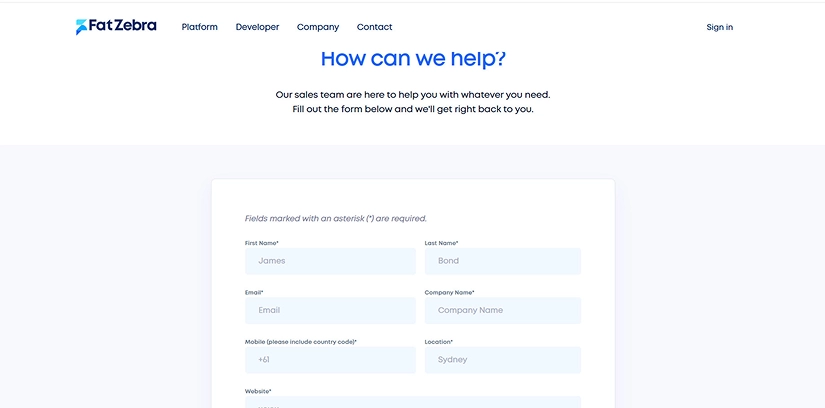
- Go to Fat Zebra and request the account. Provide the business details and required documents
- Create the account by entering all the information
- After Approval:
- Merchant Dashboard access
- Two environments:
- Sandbox (TEST)
- Production (LIVE)
- Enter the credentials
Technical steps start here:
Step 1. Log in to the Portal
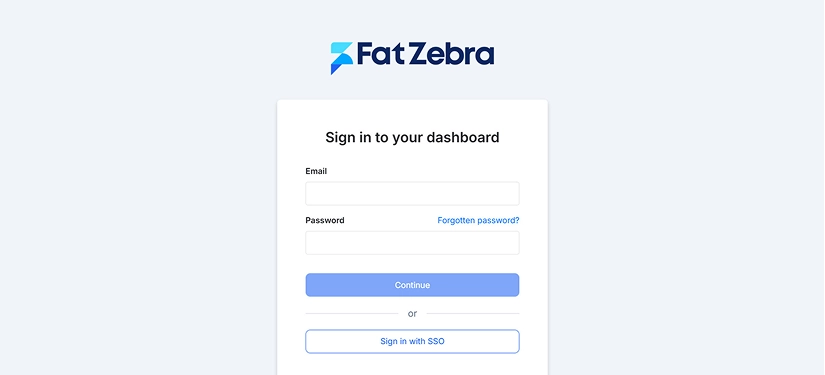
- Go to the Fat Zebra Sandbox login page
- Sign in using your sandbox merchant credentials
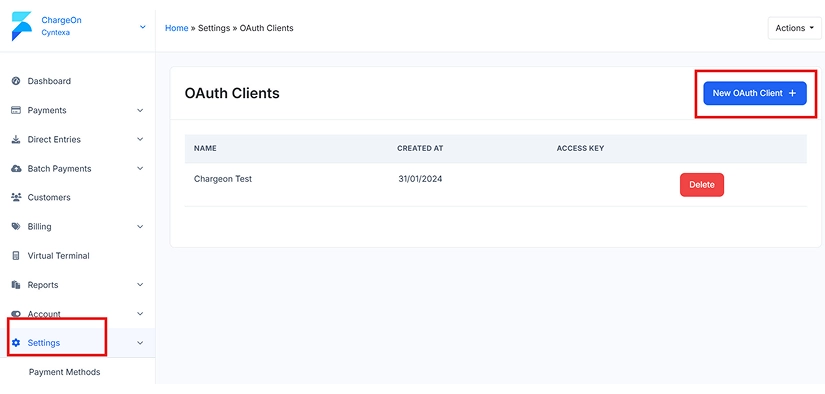
Step 2. Open Settings Section
- From OAuth Clients
- Create new OAuth
- Copy the Access key for future reference
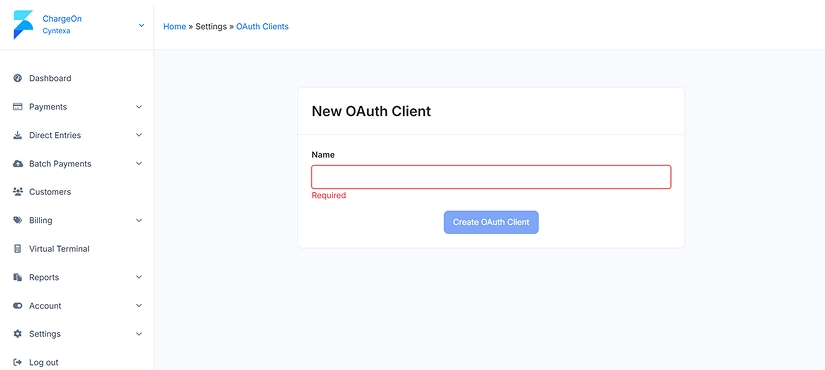
Step 3. Save and Share Securely
- By now, you have obtained the Secret Key
Create your Fat Zebra payment gateway record in Salesforce
- Click on the App Launcher (9-dot icon)
- Search for ChargeOn.
- Click to open the ChargeOn application.
- From the ChargeOn app navigation bar, open the Payment Gateway tab.
- Click New to create a new Payment Gateway record.

- In Select Gateway, choose Fat Zebra from the dropdown.
- Under Select Payment Method, move the following options from Available to Selected:
- Instant
- Schedule
- Recurring
These define how payments can be processed using this gateway.
- Under Select Payment Types, move the following options from Available to Selected
- Card
- Link
- BECS
This enables payment links for Fat Zebra.
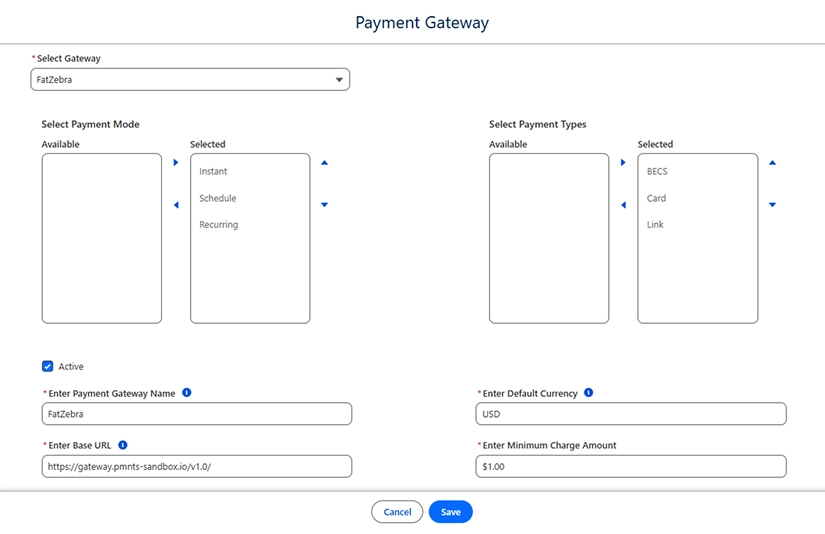
- Fill in the required fields as follows:
- Payment Gateway Name
- Default Currency: USD
- The supported currencies: Refer to this document
- Base URI: https://checkout-test.Fatzebra.com/v71
- Minimum Charge: $1
- Use the apitest URL for sandbox/testing.
- Replace with the production URL when configuring live payments.
Step 7: Add gateway credentials
- In the Gateway Credentials section, add the following key-value pairs:
- Credential
- Key: username
- Value: {your username}
- Key: password
- Value: {your passowrd}
- Credential
Step 8: Review all details carefully and click Save
The Fat Zebra payment gateway is now configured and ready for use in ChargeOn.
Test your transactions in a Salesforce Sandbox
You can test your integration in multiple ways.
We are sharing one of the simplest ways to test the same using Fat Zebra payments.
Fat Zebra Payment allows you to make payments using a payment link via Credit card or using a bank account number.
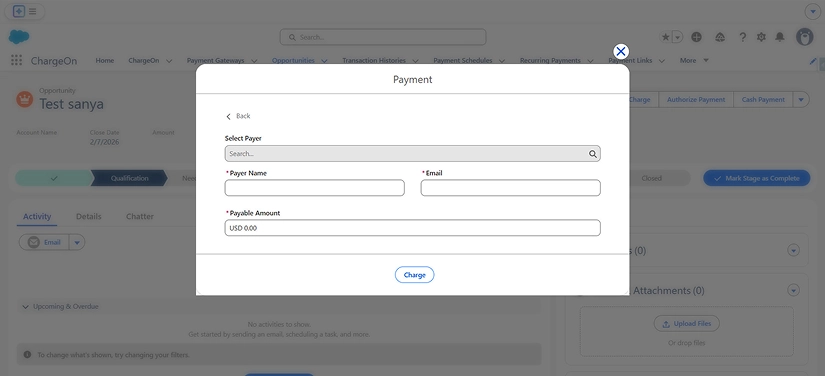
- Selects the payment gateway to start the payment process.
- Once the gateway is chosen, select Fat Zebra Payment as the payment method.
- Choose the payment mode: instant, schedule, or recurring payment
- Enter basic personal details, such as Payee Name, Email, and Payable Amount
- Click the Charge button to submit the payment
The system securely sends the Payment URL to the customer's email. The customer securely processes the payment using a credit card and bank account.
A confirmation email is automatically sent to the customer, and the payment details are saved in Salesforce for tracking and records.
Prepare to go live in production
After the testing is completed in the Sandbox, the configuration can be migrated to the production environment:
Register for a production account. Use the contact information in the enrollment email messages to work with Fat Zebra Support and obtain the same set of credentials for your production account
- Go to the live Fat Zebra environment and get the credentials with the same steps we
mentioned above. For example:
- Credential 1
- Key: x-api-key
- Value: {your x-api-key}
- Credential 1
- Add these credentials to ChargeOn, and now your data is ready for the live environment
Post deployment, perform controlled production testing to validate end-to-end payment processing before enabling the solution for live users.
With this, your Fat Zebra integration with Salesforce is successful using ChargeOn.

Refer to our Salesforce Multi-Gateway Setup Guide for integrating multiple payment gateways and optimizing your Salesforce payment integration. This eliminates the dependency on a single vendor.
Apart from Fat Zebra, ChargeOn supports other widely used global payment gateways, including: