
Apply a Credit Memo
Applying a credit memo settles some or all of an invoice using credit the customer already holds, instead of taking a new payment.
There are two ways to do it, and which one you want depends on whether a payment is being taken at the same time.
| Route | Where it is | Use it when |
|---|---|---|
| Settle With Credit Memos | On the invoice | The invoice already exists and you are clearing it with credit, taking no new payment |
| Apply Credit Memos | On the Charge screen | You are taking a payment now and want the credit to reduce what the customer pays |
The rest of this page covers the invoice route first, then the Charge screen.
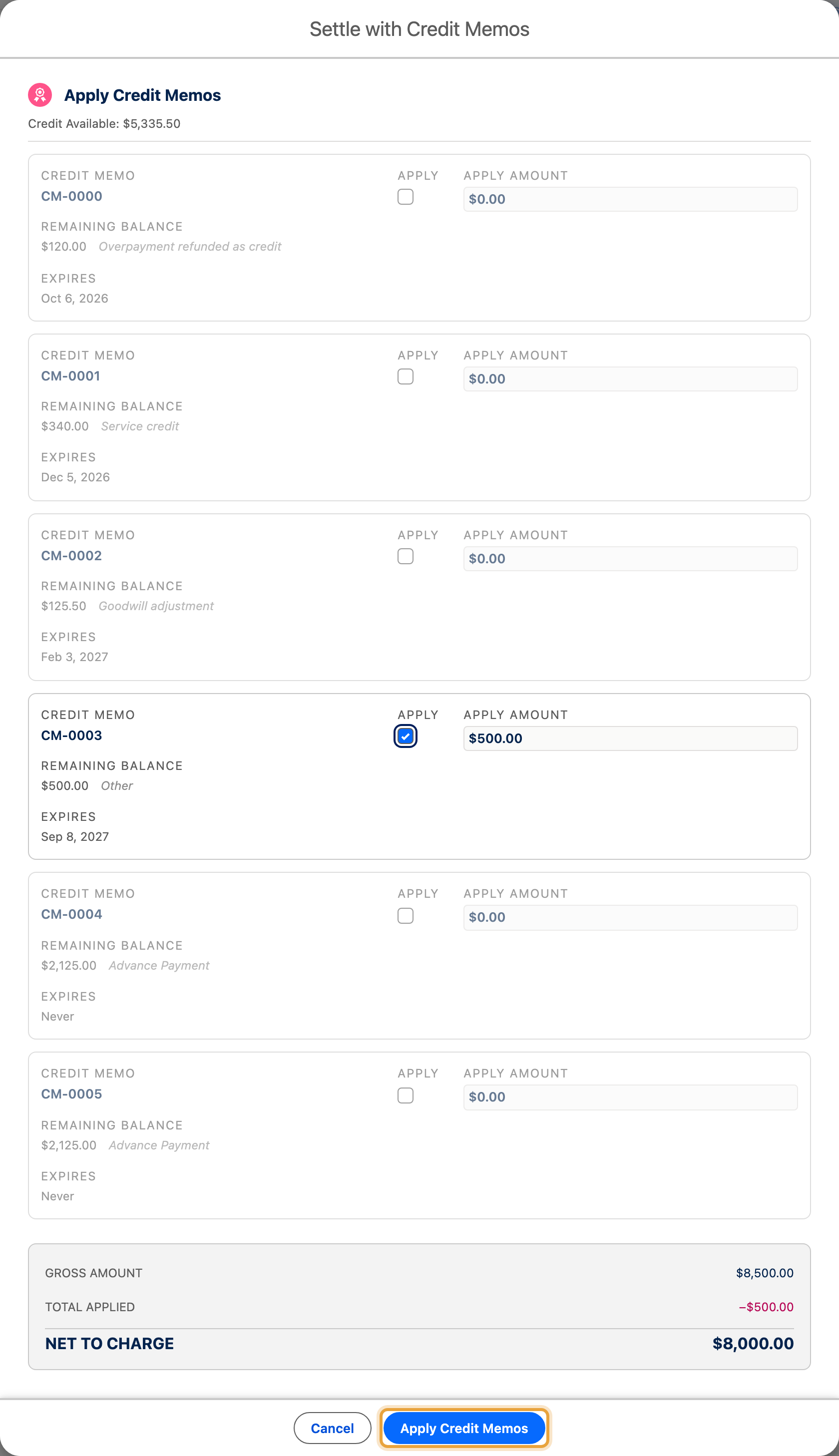
The example applies CM-0003, a $500 credit memo categorized as Other, to Emily Ross’s $8,500 Q4 expansion for Summit Technologies. Its reason describes the agreed service adjustment. The invoice balance or Net to Charge becomes $8,000.
Before You Start
- You need the ChargeOn permission for applying credit memos (part of the ChargeOn Credit Memo Manager permission set).
- The credit memo must have a remaining balance: check its Remaining Amount. A credit memo that is already Fully Applied, Voided, Written Off or Expired has nothing left to apply.
- Apply credit from the invoice or from the Charge screen.
- You can apply up to 20 credit memos to one invoice in a single action.
From an Invoice: Settle with Credit Memos
-
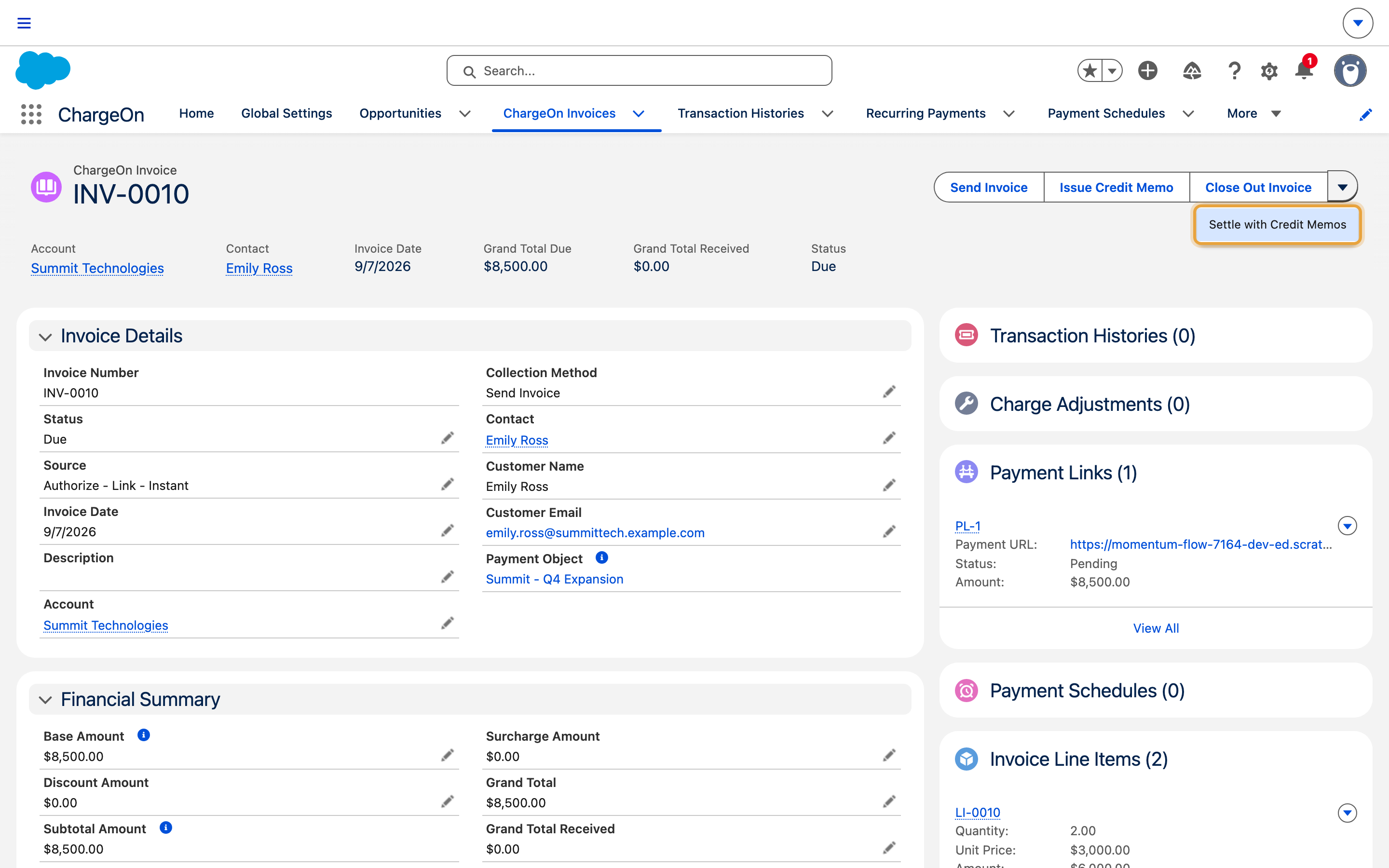
Open the invoice you want to settle.
-
Click Settle With Credit Memos.
-
From the list of available credit, pick the credit memo (or memos) to use. The list shows available credit soonest-to-expire first (see the order credit is applied in), but you can choose any of them, in any order.
-
Set how much of each to apply, up to its remaining balance. Keep the total within the invoice’s outstanding amount.
-
Click Apply Credit Memos.
What You Should See
The invoice's Credit Memo Applied amount increases and its outstanding balance falls. If the full amount is now covered, the invoice moves to Paid; if some is still owing, it moves to Partially Paid. Each credit memo you used shows the new remaining balance, and moves to Partially Applied or Fully Applied.
From the Charge Screen: Apply Credit Memos
Use this route when you are taking a payment and want the customer's credit to reduce what they pay now, in the same action. The button only appears when that payer holds open credit.
-
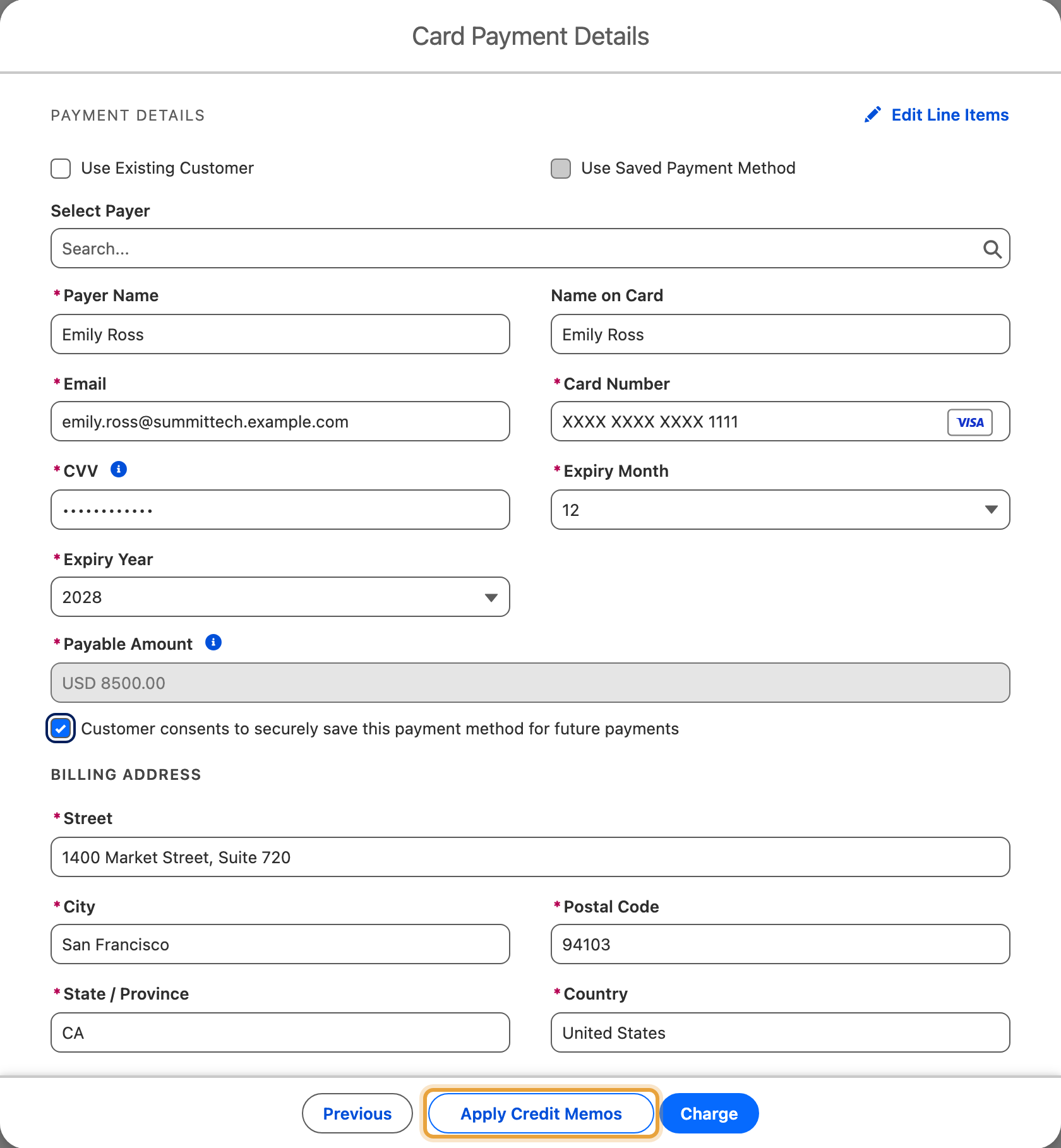
Start a charge as usual. See charge a customer.
-
At the bottom of the payment form, click Apply Credit Memos, beside Charge.
-
Set how much of each credit memo to use. Net to Charge at the bottom shows what the customer will pay once the credit comes off.
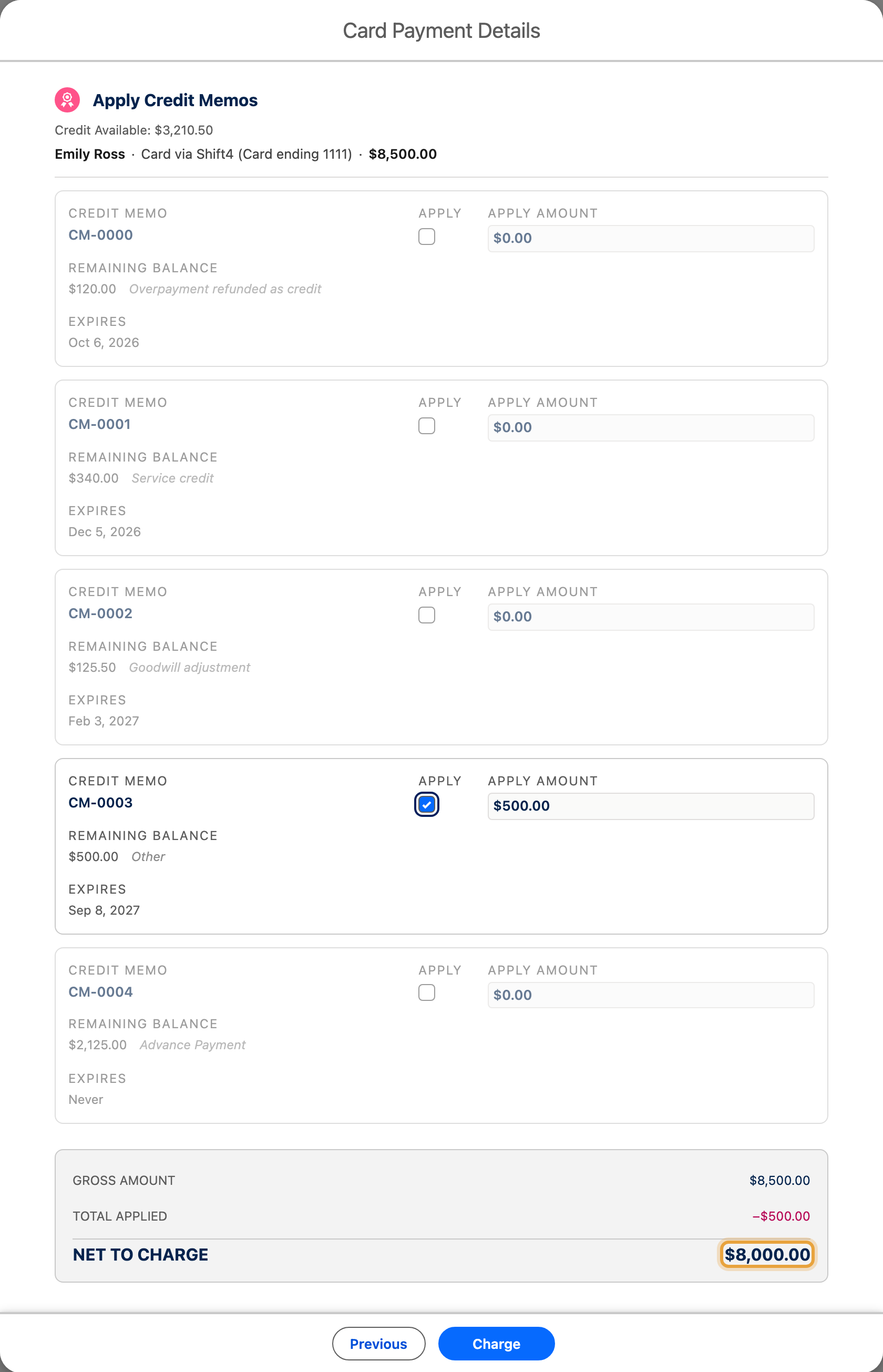
The screen opens with every amount at zero, so nothing is applied until you enter it. Net to Charge updates as you type.
-
Click the primary button at the bottom of this screen. It submits the payment straight away rather than taking you back to the payment form first, so check the amounts before you click it. Its label matches what you are doing:
You are doing this Button reads Instant Payment Charge Schedule Payment Schedule Payment Installment Plan Set Up Installments Subscription Start Subscription The credit covers the whole amount Apply Credit & Mark Paid
If the credit covers the whole amount, Apply Credit & Mark Paid takes no money at all. It simply marks the charge paid using the credit.
If you decide against using the credit, click Previous to return to the payment form without charging anything.
If credit has already been applied to this charge, the button reads Edit Credit Memos and reopens the same screen so you can change the amounts.
What You Should See
The charge goes through for the reduced amount, and each credit memo you used drops by what you applied and moves to Partially Applied or Fully Applied. If the credit covered the whole amount, no money is taken: the record is marked paid directly.
When the Button Is Missing or Disabled
| What you see | Why |
|---|---|
| No button at all | The payer holds no open credit, or credit memos are not enabled for this payment object |
| No button, and you are entering line items | It is hidden while the line-items screen is open. Finish the line items first |
| No button, and the amount cannot be edited | It is hidden when the amount is locked, so a locked amount cannot be reduced from inside the form |
| The button is there but greyed out | You are in Subscription mode with an upfront amount set. The upfront amount and Recurring Amount are charged separately, so a single credit memo cannot be split across both. Clear the upfront amount, or apply the credit against the invoice instead |
If It Does Not Work
| Symptom | Likely cause | What to do |
|---|---|---|
| A credit memo does not appear in the list | It belongs to a different customer, has nothing left to apply, or is Voided/Written Off/Expired | Check the credit memo's own record for its status and Remaining Amount |
| ChargeOn rejects the total as too high | The amounts entered add up to more than the invoice's outstanding balance | Reduce one or more of the amounts |
| An advance-payment credit is not covering the customer's new installment plan or subscription invoice automatically | Auto Apply on Recurring was left off when the advance payment was recorded or charged | Apply the credit using the steps above. For future cycles, ask whoever recorded it to enable Auto Apply on Recurring |