
Line Items, Tax and Discount
Every invoice line can carry its own flat discount and its own tax rate. This page covers how those numbers are worked out, and where the admin configuration behind them lives.
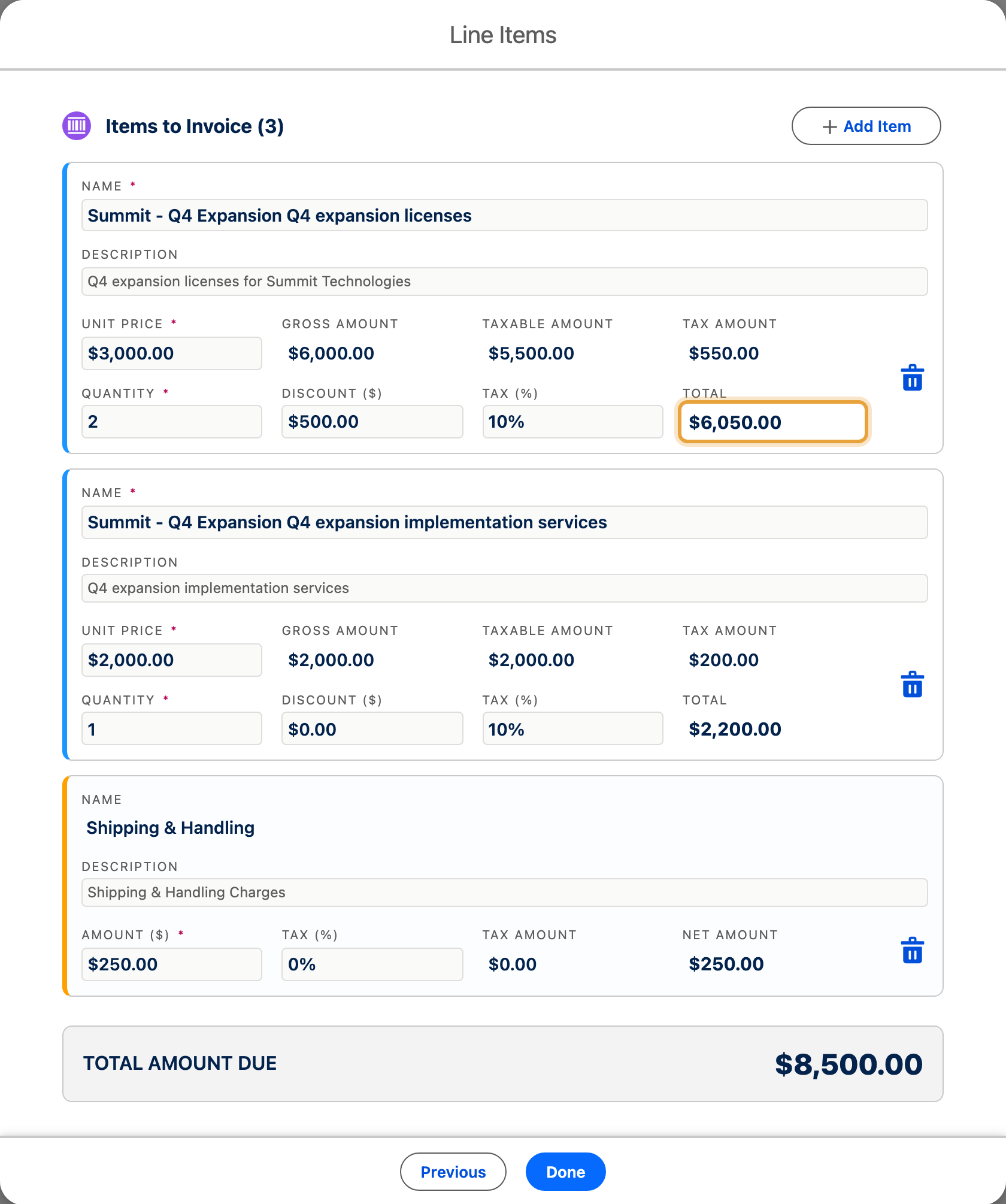
This example uses Emily Ross’s Q4 expansion for Summit Technologies. With discount and tax applied, the service lines total $6,050 and $2,200; adding $250 shipping keeps the invoice total at $8,500.
Before You Start
- Your admin needs to have mapped which field on your line-item records holds the discount amount, and which holds the tax rate. See the quick start guide, Part 5, Invoice line item mapping. If neither is mapped, every line is treated as having no discount and no tax.
- Shipping and handling is a property of the line, not a separate field mapping: you flag a line as shipping/handling when you add it.
How a Line's Amount Is Worked Out
For an ordinary product or service line:
- Gross = quantity × unit price.
- Taxable amount = gross minus the line's discount.
- Tax = taxable amount × tax rate.
- Line total = taxable amount + tax.
Enter the discount as a flat amount off the line, and the tax rate as a percentage from 0 to 999.99%. Use the same formats in the mapped source fields.
A line flagged as shipping and handling works slightly differently: its quantity is always treated as 1, no discount applies to it, and its tax is tracked separately from your product tax, so you can always see how much of the total tax came from shipping versus from what you sold.
Steps
- Open the invoice, or the Charge screen if you are billing now, and go to the line items section.
- Add a line for each product, service, or charge.
-
Enter the quantity, unit price, discount and tax rate for each line: pulled in automatically if your admin mapped them from the underlying record, editable either way.
-
Flag any shipping or handling charge as Shipping/Handling rather than a product line.
-
Review the totals ChargeOn calculates at the bottom.
Continue with the invoice or charge.
What You Should See
Each line shows its own subtotal, discount, tax and total. The invoice header rolls these up into a subtotal, a discount total, a tax total (product tax and shipping tax shown separately) and a grand total.
If It Does Not Work
| Symptom | Likely cause | What to do |
|---|---|---|
| Discount or tax always show as zero | The field mapping is missing, or points at a field with nothing in it | Check Global Settings → Object and Rules → Invoice line item mapping |
| Tax on a line looks wrong, or is dropped entirely | The mapped tax field needs a percentage from 0 to 999.99% | Correct the source value on the record and regenerate the line item |
| A shipping charge is taxed alongside your products, or shows the wrong quantity | The line was not flagged as Shipping/Handling | Re-add it as a Shipping/Handling line |