
Set Up the Customer Portal
Add ChargeOn’s payment, saved-method and subscription components to your Experience Cloud site. This guide covers permissions, sharing and the components’ page properties.
Before You Start
- An Experience Cloud (Digital Experience) site, already built or in progress.
- Permission to edit permission sets, and access to Digital Experience Builder and Setup.
- Confirm with whoever implemented ChargeOn which of your gateways are configured for the portal, then choose the gateways you want to offer.
Steps
-
Assign the ChargeOn Experience Cloud User permission set to every portal user who needs ChargeOn access. This is what grants a logged-in customer the ability to pay, save a payment method and view their own transactions and subscriptions.
-
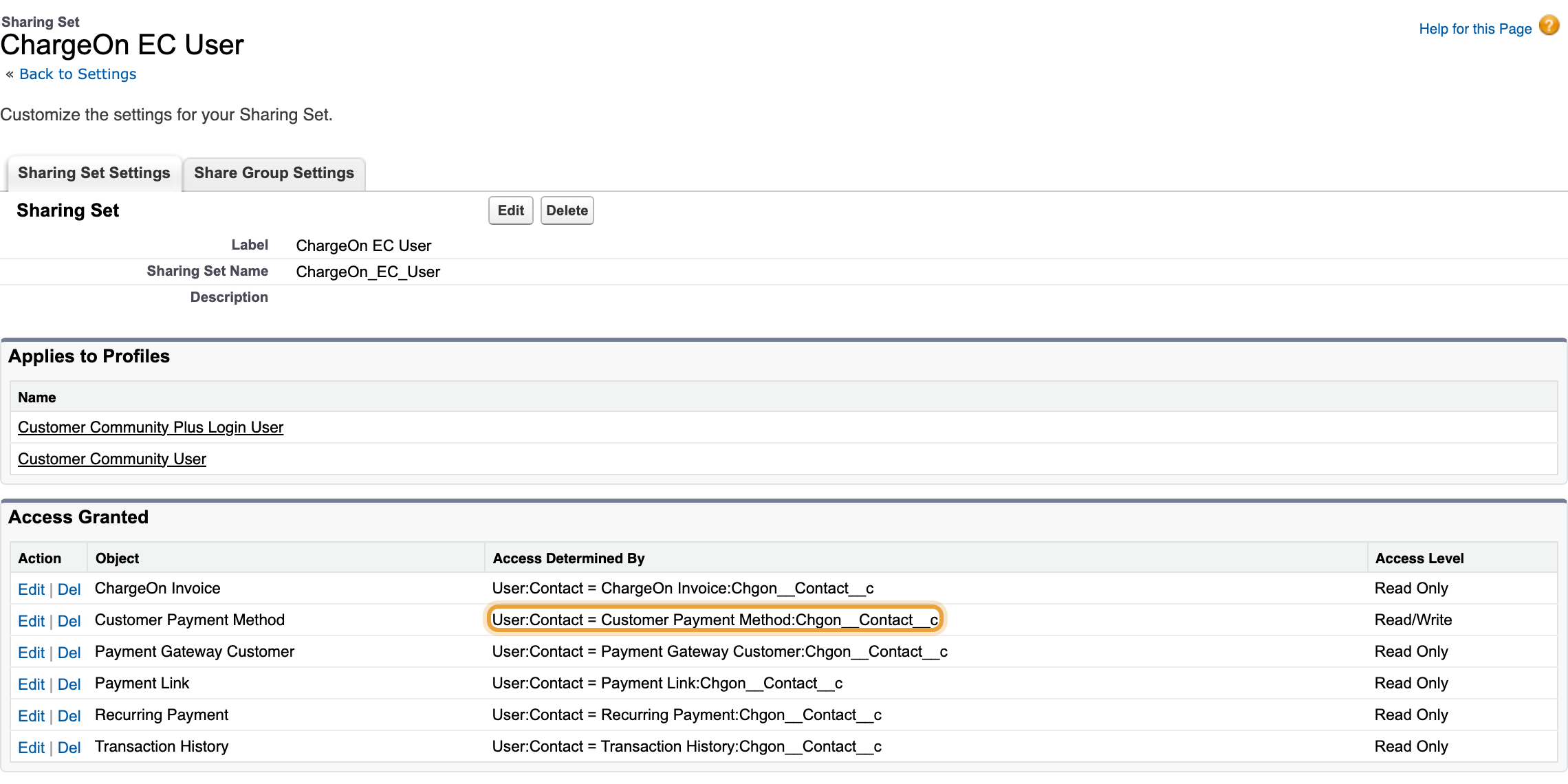
Set up Sharing Sets so each customer sees only their own records:
- Go to Setup → Digital Experiences → Sharing Sets and create a new one.
- Target Customer Payment Method and Transaction History.
-
Map the portal user's Contact to the Contact field on those objects.
-
Save.
-
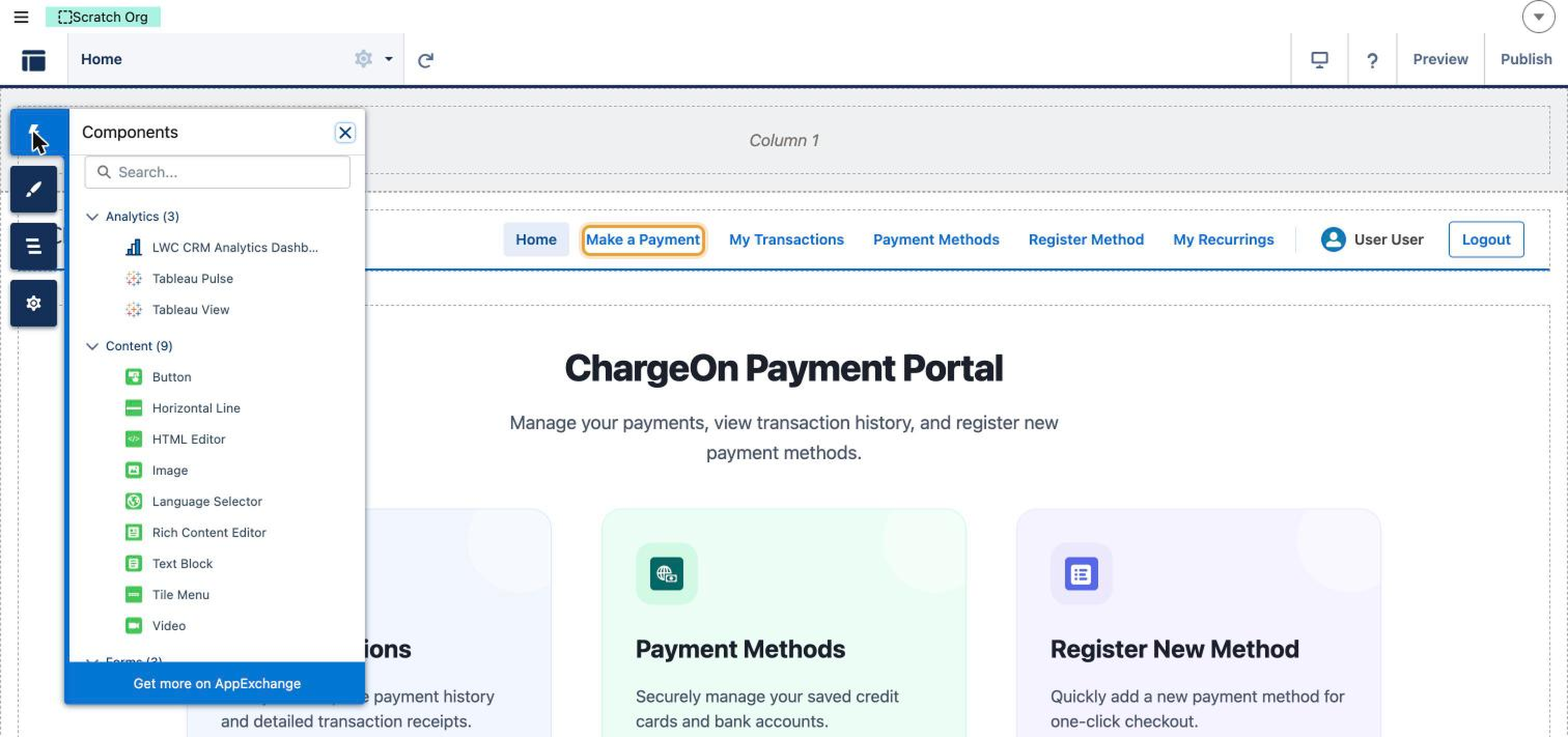
Add the ChargeOn components to your Experience Builder pages: see the table below for what each one does.
-
Set each component's required page properties. Make a Payment needs the ChargeOn record, the payment record it charges, and the payment gateway to use, all specified when you place it. My Transactions uses a Field Set on Transaction History. Create it with the columns your customers should see, then select it in the component’s page properties.
-
Publish the site.
The Components Available
| Component | What it does |
|---|---|
| My Payment Methods | View saved cards/bank accounts; reorder priority; deactivate, reactivate or delete |
| Register Payment Method | Add a new card or bank account, either through ChargeOn's own form or, on some gateways, the gateway's own secure form |
| Make a Payment | Charge one of the customer's own saved payment methods, or view and pay a specific payment link |
| My Subscriptions | List the customer's own installment plans and subscriptions |
| Subscription Detail | View one subscription, check whether it has an overdue amount at risk of an automatic retry, and change its payment method |
| My Transactions | The customer's transaction history, in the columns your Field Set defines |
What You Should See
A logged-in customer visiting the pages where you placed these components sees only their own payment methods, transactions and subscriptions. A guest visiting the same pages without logging in is turned away. This portal is for authenticated customers only. Guests continue to use your existing payment link pages, which are unaffected by any of this.
If It Does Not Work
| Symptom | Likely cause | What to do |
|---|---|---|
| A logged-in customer sees no payment methods or transaction history at all | Sharing Sets are not configured, or map the wrong field | Redo step 2 |
| The card entry area shows blank | The gateway needs a one-time setup step that has not been completed for your org | Ask whoever implemented ChargeOn to confirm it |
| A gateway you expect does not appear when registering a card or paying | That gateway is not currently set up to work in the portal | Ask whoever implemented ChargeOn whether that gateway can be set up for the portal |
| My Transactions shows nothing, or errors | No Field Set exists yet, or the wrong one was referenced when the component was placed | Create the Field Set on Transaction History, then re-check the component's page properties |
| A customer cannot change a subscription's payment method | That's the case on some gateways, where the gateway itself holds the stored payment method rather than ChargeOn | Ask your implementation team to review the subscription’s gateway and advise the customer on updating their payment details |