
Save a Payment Method
Store a customer's card or bank account so you can charge it again later, either while taking a payment now or without charging anything at all.
Before You Start
- You need the Charge action on the record's page layout to save a method while taking a payment. See Part 6 of the quick start guide.
- To save a method without charging anything, you need a Register Token action added to the record's page layout, set up the same way as the Charge action.
- A payment link also offers the customer this choice themselves. See the note below.
Steps: Save While Taking a Payment
- Open the record and click Charge.
- Choose Card or Bank as the payment type, and Instant Payment as the payment mode.
- Enter the customer's payment details.
-
Tick Customer consents to securely save this payment method for future payments.
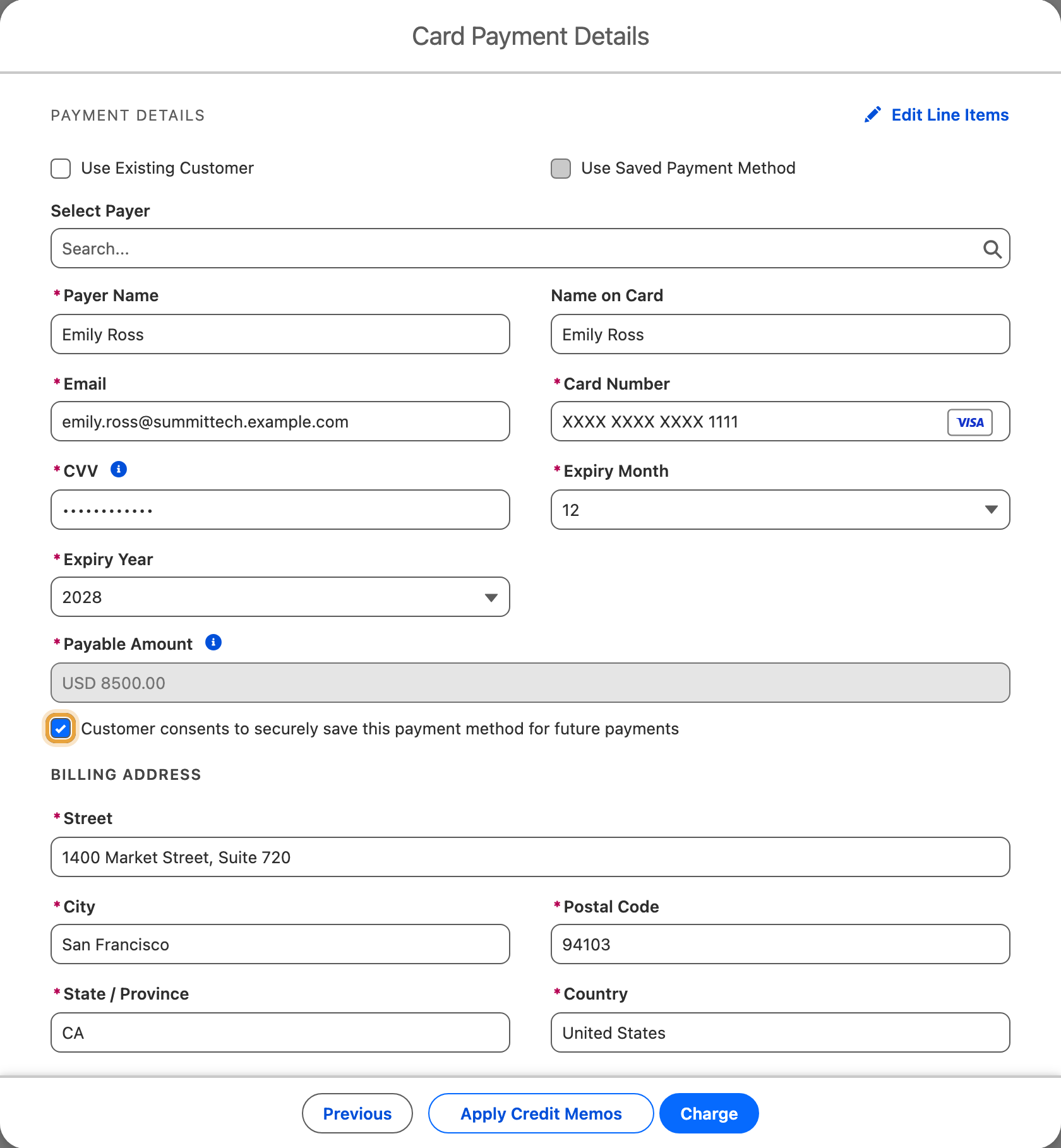
-
Complete the payment.
Steps: Save Without Charging
- Open the record and click Register Token.
-
If prompted, choose the payment gateway, then choose the card or bank payment type. ChargeOn can select these automatically from your configuration.
-
Enter the customer's payment details.
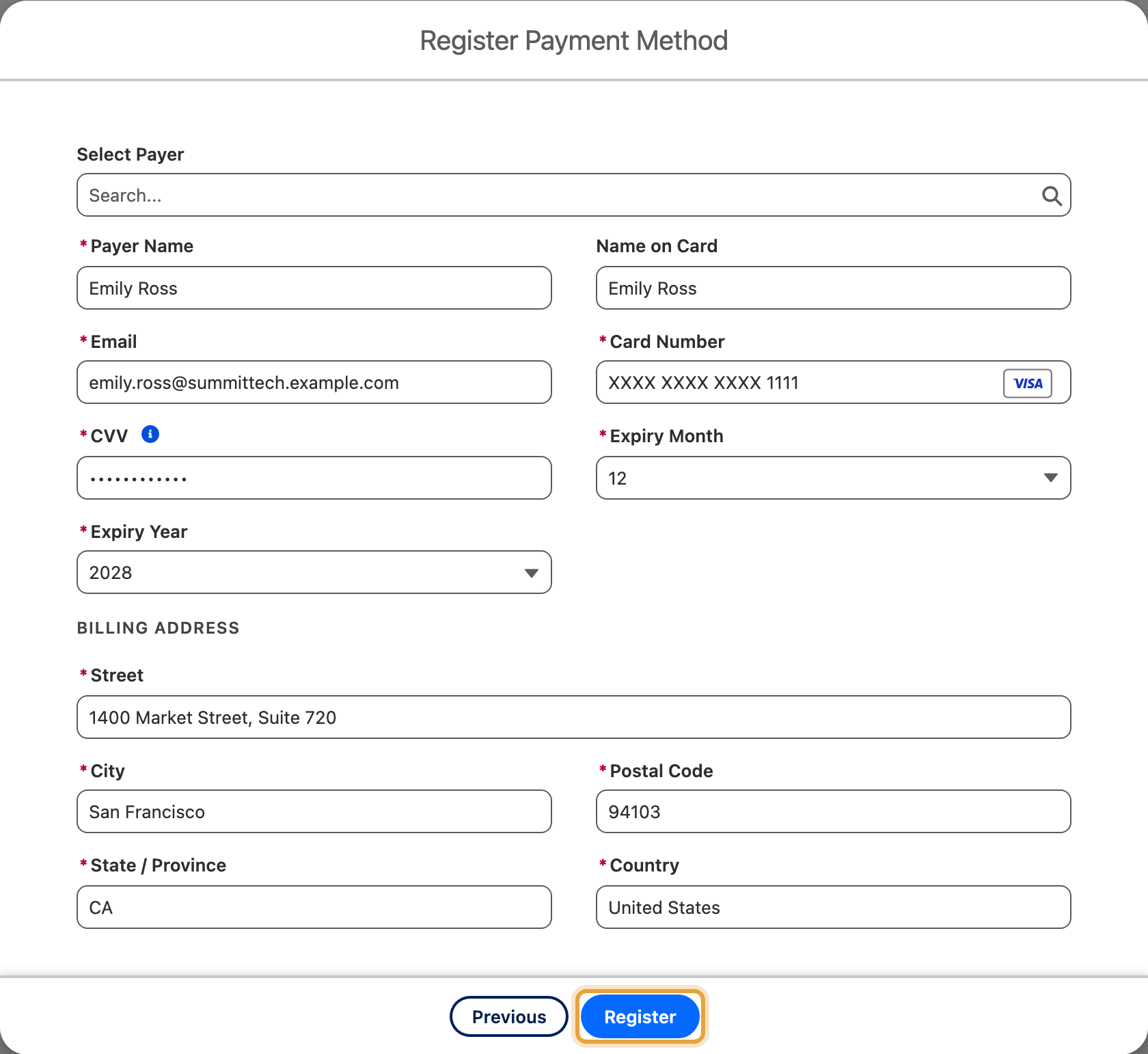
-
Click Register.
What You Should See
A new saved payment method against the customer, with status Active. If you charged while saving it, a successful transaction appears as well.
Schedule Payment, Installment Plan and Subscription save automatically
In Schedule Payment, Installment Plan and Subscription modes, ChargeOn shows an informational note explaining that the method is saved for future charges. Review this with the customer when setting up the schedule.
Customers can save their own
A payment link can offer the customer an unticked-by-default option to save their own details for next time. If a customer does not want their payment method stored at all, sending a payment link, and leaving that box unticked, is the way to collect a one-off payment with nothing saved.
If It Does Not Work
| Symptom | Likely cause | What to do |
|---|---|---|
| No consent checkbox appears in Instant Payment mode | This appears for Card or Bank payments in Instant Payment mode. Check whether you selected Schedule Payment, Installment Plan or Subscription, which handle it differently | Confirm the payment type and mode selected |
| The checkbox was ticked, but no payment method was saved afterwards | The charge itself did not fully succeed, or the gateway's tokenisation step failed separately from the charge | Check the transaction record for the actual result |
| A saved payment method shows no card details | This is expected. With some gateways, the customer completes payment on the gateway's own page, and the gateway stores the payment method instead of ChargeOn, so the type, expiry date and last four digits may not be known | See Payment methods and the gateway reference |
| Register Token is missing from the record page | The action has not been added to the page layout | Add it the same way as the Charge action. See Part 6 of the quick start guide |