
Set Up Multicurrency Payments
By the end of this guide your gateways are correctly scoped to the currencies they can process, and you know exactly how ChargeOn decides which currency any given payment runs in.
Who does this: a Salesforce administrator.
How long: about 45 minutes, plus time confirming with each gateway which currencies it actually supports.
Complete the quick start guide first
This guide assumes ChargeOn is already installed and connected to at least one gateway. If you have not worked through the quick start guide yet, do that first.
Before You Start
- ChargeOn is installed and connected to at least one payment gateway. See the quick start guide if it isn't yet.
- Multiple Currencies is turned on in Salesforce, and every currency you intend to sell in is Active, under Setup → Company Information → Currency Setup. This is a Salesforce platform setting. Enabling it is permanent; confirm your currency requirements before switching it on.
- You know which currencies each of your connected gateways can genuinely process. That comes from your gateway’s account or documentation. Use that confirmed list in Part 2.
Turning on Multiple Currencies is permanent
Confirm this is what you want before switching it on in a production org. If you're not sure, do this step in a sandbox first.
What You Will Do
- Confirm your Salesforce currency setup
- Tell ChargeOn which currencies each gateway can process
- See how ChargeOn decides a payment's currency
- Check the zero- and three-decimal currencies you use
- Take a test payment in a second currency
Part 1: Confirm Your Salesforce Currency Setup
- Go to Setup → Company Information.
-
Click Currency Setup (or Manage Currencies).
-
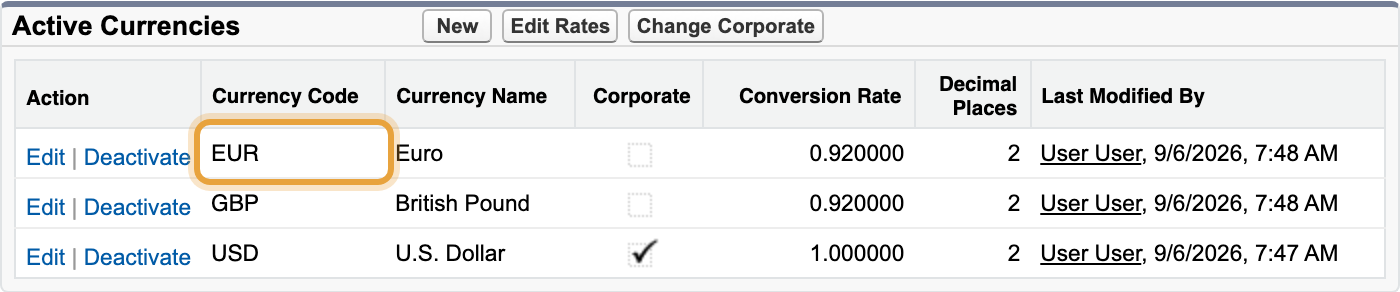
Under Active Currencies, confirm every currency you intend to take payments in is listed and Active.
-
Note the Decimal Places shown for each currency you use. You'll come back to this in Part 4.
-
Note your Corporate Currency. ChargeOn doesn't change this, but it's the currency your Salesforce reports and rollups convert everything into.
What you should see: every currency you plan to accept payments in appears in the Active Currencies list, each with the decimal places you expect.
Part 2: Tell ChargeOn Which Currencies Each Gateway Can Process
Repeat this for each gateway you've connected.
- Go to Global Settings → Payment Gateways and open the gateway.
-
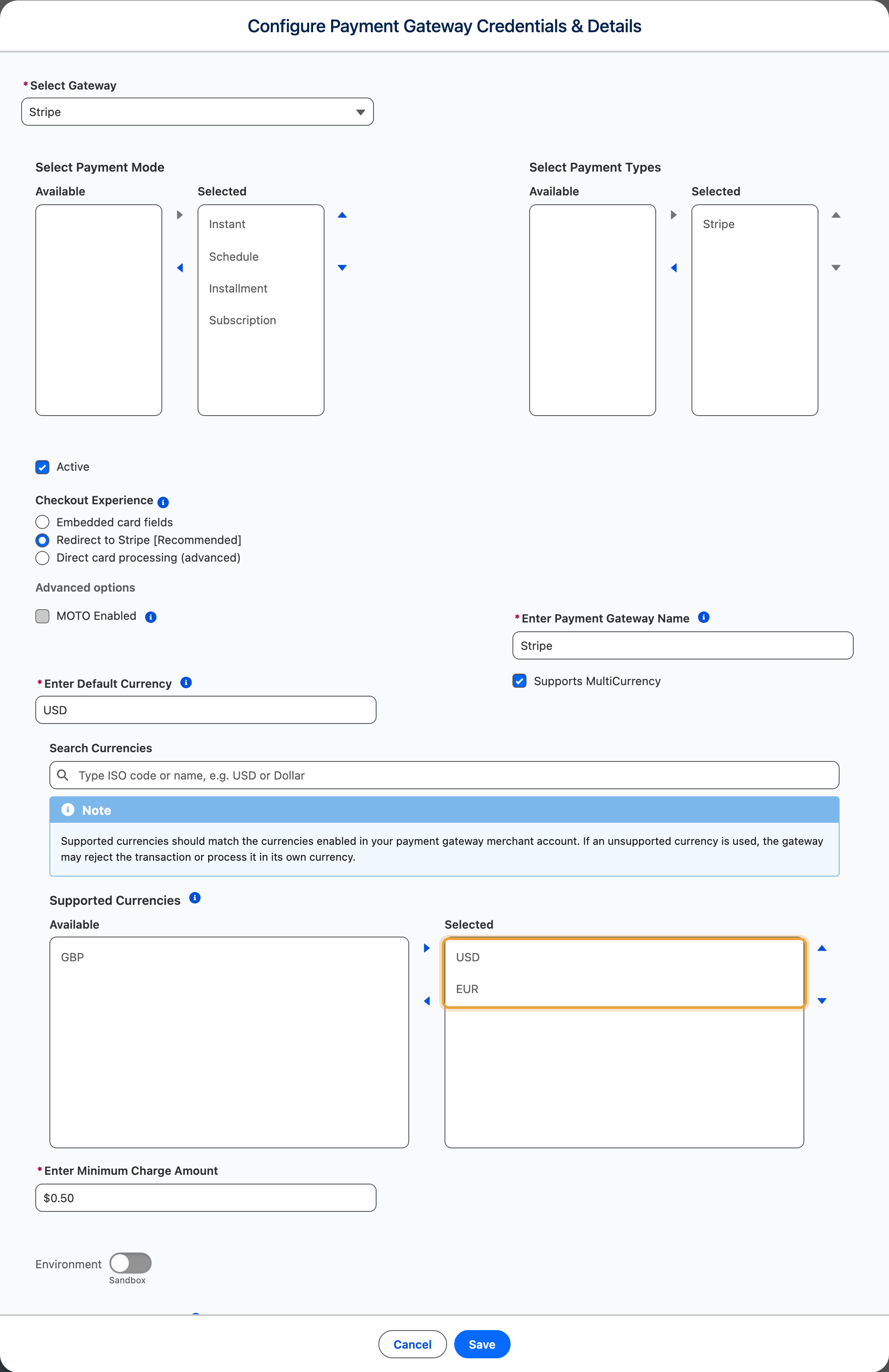
Set Default Currency to the currency this gateway is primarily set up for in its own account.
-
If the gateway can genuinely settle in more than one currency, tick Supports MultiCurrency.
-
If you ticked it, choose every currency this gateway can actually process in Supported Currencies. Leave it unticked and the gateway is only ever offered for its Default Currency.
-
Click Save.
Use currencies confirmed by your gateway
Set Supported Currencies to the currencies enabled on your merchant account. Confirm the list with your gateway’s documentation or account team before saving. ChargeOn uses your configured list when offering gateways for a payment.
What you should see: each gateway record shows the currencies you configured: either a single Default Currency, or Supports MultiCurrency ticked with your full list under Supported Currencies.
Part 3: See How ChargeOn Decides a Payment's Currency
- Open a record of your payment object.
-
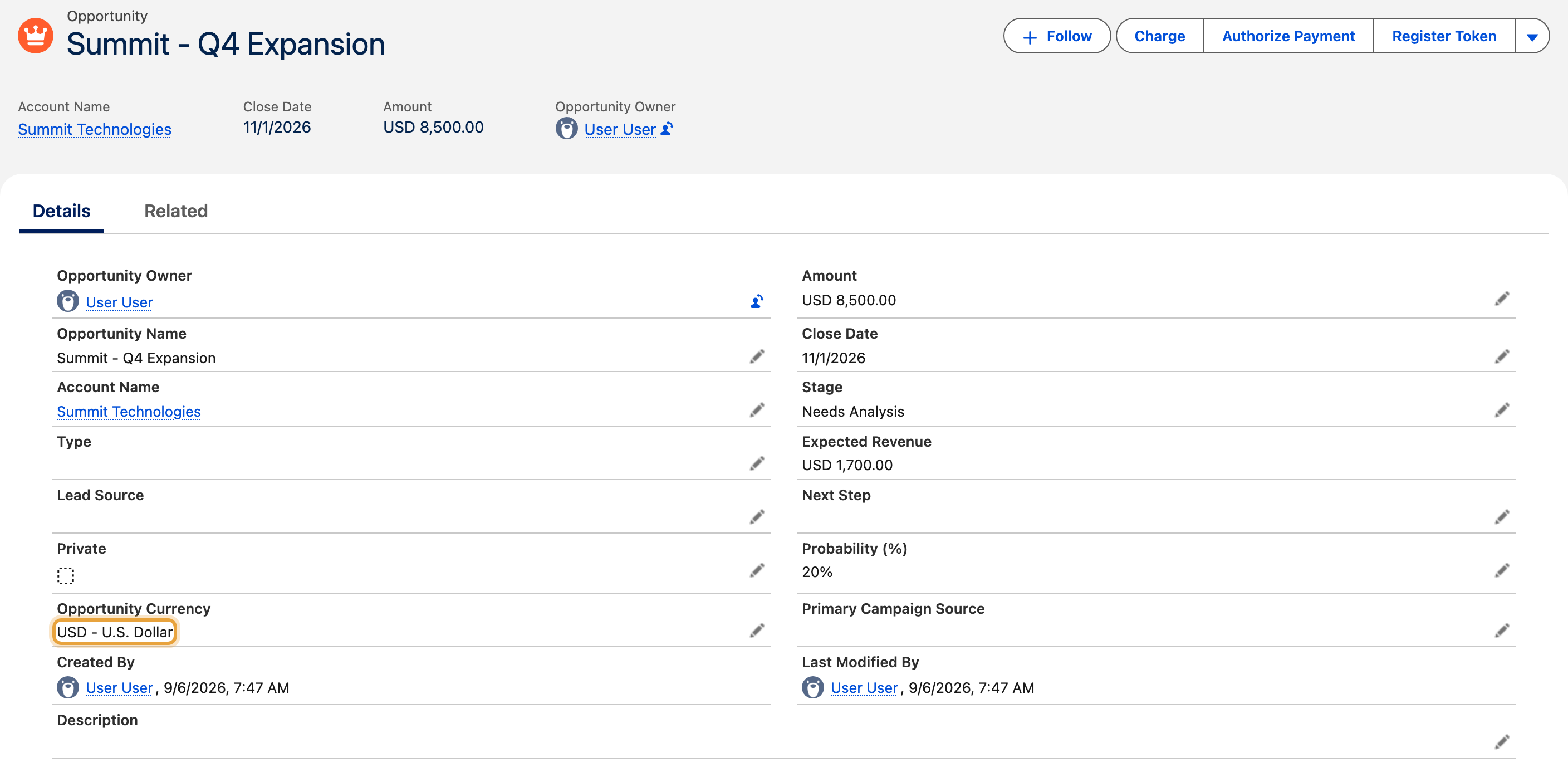
Look at its Currency field. Every record carries one once Multiple Currencies is on, and this is the exact value ChargeOn uses.
-
Click Charge.
- Confirm the gateways on offer are only the ones you set up to support that currency in Part 2.
-
Select a gateway, choose Card Payment and Instant Payment, and complete the payer and payment details. Check that Payable Amount shows the source record currency.
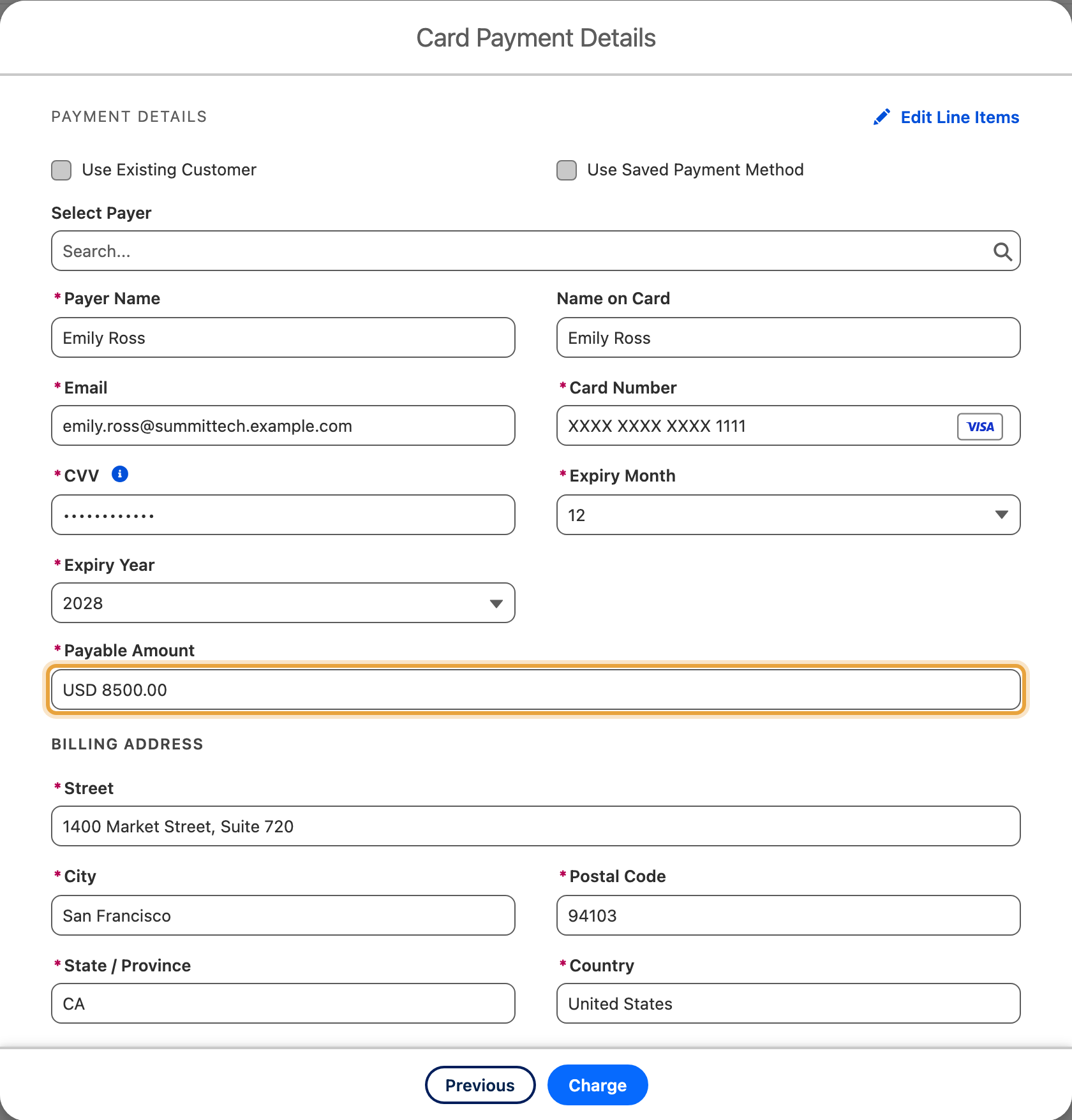
The rule, plainly: ChargeOn always charges a payment in whatever currency is already sitting on the record it's raised against. No one chooses a currency at charge time (not the payer, not the person clicking Charge, not an AI agent). It is decided before the Charge screen even opens, by reading the record's own Currency field. A payment link works the same way, reading the currency stamped on the Payment Link record itself when it was generated.
Once the currency is known, ChargeOn only offers gateways configured to support it (Part 2). If Gateway Routing is switched on, the same check applies to routing rules: a rule that would send a payment to a gateway not configured for its currency is skipped, and the next rule (or the default gateway) is tried instead.
What happens when no gateway supports the currency
If none of the gateways linked to a payment object support the record's currency, ChargeOn blocks the charge before it reaches a gateway. No money moves and no decline is generated anywhere. The Charge screen shows:
No payment gateways support (currency). Please contact your administrator to enable payment processing for this currency.
To fix it: add that currency to a linked gateway (Part 2), or link a gateway that already supports it under Global Settings → Object and Rules.
What you should see: for a record in a currency you've configured, the gateway(s) you expect appear on the Charge screen. For a record in a currency none of your gateways support, you see the blocked message above instead of a gateway picker.
Part 4: Check the Zero- and Three-Decimal Currencies You Use
Most currencies use two decimal places: dollars and cents, pounds and pence. A few don't work that way, and ChargeOn already knows the difference: it rounds displayed amounts and encodes what it sends to your gateway according to each currency's real minor unit, not a blanket two-decimal assumption. There is nothing to configure for this. It happens automatically for every gateway.
Currencies with no minor unit at all (0 decimal places): a Japanese yen amount is always a whole number, never ¥100.00:
| BIF: Burundian franc | CLP: Chilean peso | DJF: Djiboutian franc | GNF: Guinean franc |
| JPY: Japanese yen | KMF: Comorian franc | KRW: South Korean won | MGA: Malagasy ariary |
| PYG: Paraguayan guaraní | RWF: Rwandan franc | UGX: Ugandan shilling | VND: Vietnamese đồng |
| VUV: Vanuatu vatu | XAF: Central African CFA franc | XOF: West African CFA franc | XPF: CFP franc |
Currencies with three decimal places, one more than usual:
| BHD: Bahraini dinar | IQD: Iraqi dinar |
| JOD: Jordanian dinar | KWD: Kuwaiti dinar |
| LYD: Libyan dinar | OMR: Omani rial |
| TND: Tunisian dinar |
Everything else uses the standard two decimal places.
-
If you use any currency from either table above, open Setup → Company Information → Currency Setup and check its Decimal Places value (you already noted this in Part 1).
-
Compare it against the tables above.
Align currency display and payment precision
Salesforce’s Decimal Places setting controls standard currency fields and reports. ChargeOn rounds payment amounts and sends them to gateways using the currency precision in the tables above. Set Salesforce’s values to the same precision for consistent display. If your organisation uses a customised decimal setting, verify a test transaction against the gateway dashboard to confirm the amount received.
What you should see: a payment in a zero-decimal currency (e.g. JPY) shows as a whole number everywhere in ChargeOn (the Charge screen, Transaction History, invoices), and the identical, undivided amount on your gateway's own dashboard.
Part 5: Take a Test Payment in a Second Currency
-
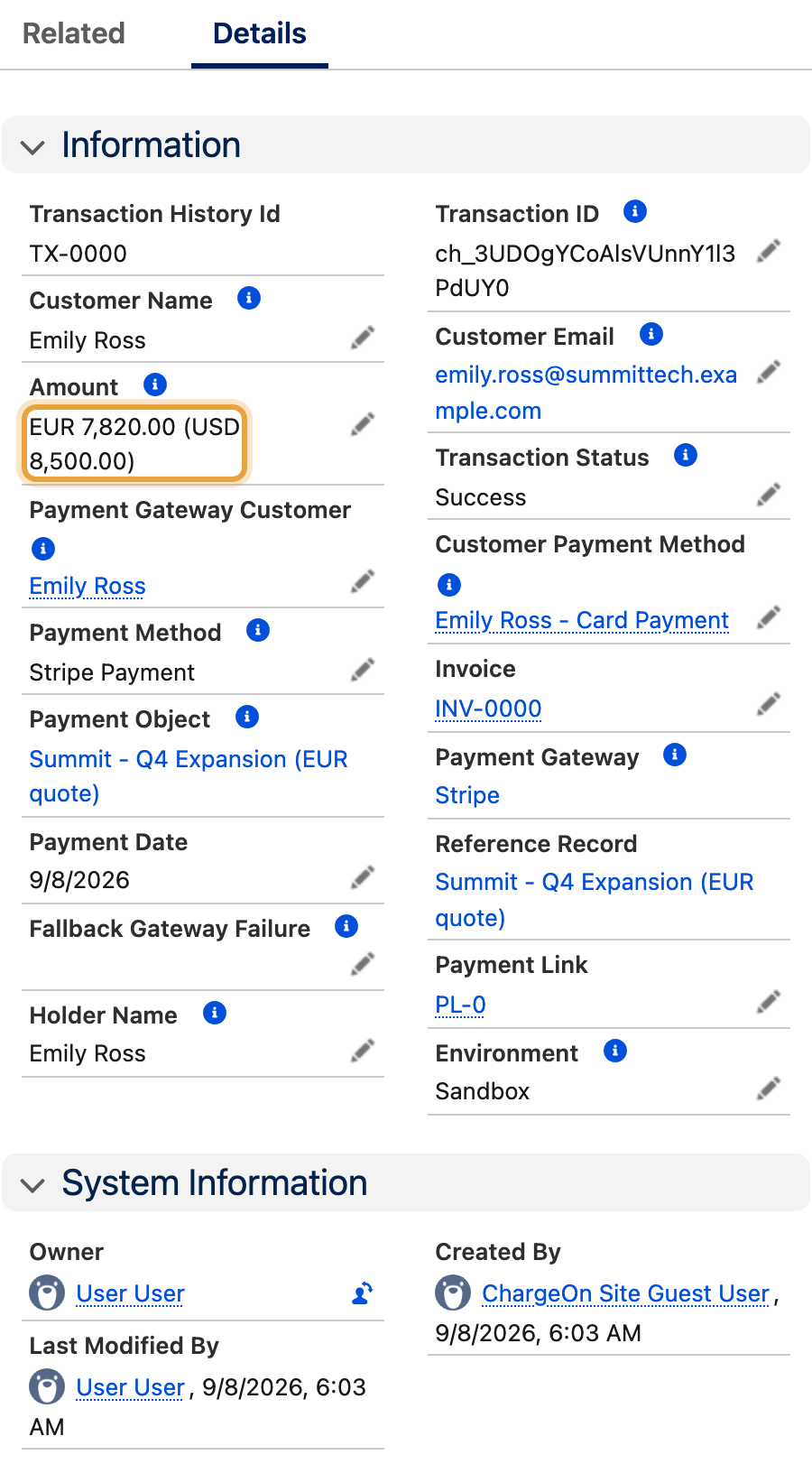
Open or create a test record in a currency you configured a gateway for in Part 2, one different from your main currency. In this example, Emily Ross’s Summit Technologies Q4 expansion is quoted at EUR 7,820, equivalent to USD 8,500 at the org’s configured rate of 0.92 EUR per USD.
-
Click Charge.
-
Confirm the currency shown matches the record, and the gateway offered is the one you expect.
-
Complete the payment with your gateway's test card or test account details.
-
Open the completed payment’s Transaction History record and confirm its currency, amount, customer, successful status, gateway and transaction ID.
-
Check the same transaction in your gateway's own dashboard. The currency and amount should match exactly, decimal places included.
What you should see: a successful transaction in ChargeOn showing the second currency, and a matching transaction (same currency, same amount) in your gateway's own dashboard.
How Multicurrency Affects Installments and Subscriptions
When you create an installment plan or subscription, its currency comes from the record you launch it against. Every charge uses that currency for the life of the plan.
Choose the right currency before you create the plan
To use a different currency for an installment plan or subscription, abort the plan and create a new one against a record in the correct currency.
Multicurrency and the AI Surfaces
Agentforce and Headless 360 payments use the currency of the record they run against, just like the Charge button. Before starting the conversation, confirm that record’s Currency. To take a payment in another currency, use a record set to that currency and start a new request.
Reconciliation and Multicurrency
Transaction Reconciliation compares what ChargeOn recorded against what your gateway actually processed. For gateways whose API reports amounts in a minor unit (cents, paise and similar), reconciliation has to know how many decimal places that currency actually uses to compare amounts correctly.
ChargeOn handles this for you. Reconciliation uses the same currency-aware decimal handling as the rest of the product, so a zero-decimal currency such as Japanese yen is compared correctly against what the gateway reports.
If an amount mismatch does appear on a multicurrency transaction, check it against your gateway's own dashboard first: the two records should agree, and the dashboard tells you which side to look at.
Next
Post-configuration testing guide: work through every payment type, including any second currency, before you go live.
ChargeOn terminology: definitions for Gateway fallback, Payment orchestration and other terms used in this guide.
If Something Went Wrong
| Symptom | Likely cause | What to do |
|---|---|---|
| The Charge screen shows "No payment gateways support (currency)" | No active gateway linked to this payment object has that currency in its Default Currency or Supported Currencies | Add the currency to a linked gateway (Part 2), or link a gateway that already supports it under Global Settings → Object and Rules |
| A payment link shows the same "no gateway" behaviour | Same cause as above, checked against the Payment Link record's own currency rather than the original payment object | Same fix: Part 2 |
| An installment plan or subscription is charging in a currency you didn't intend, or you need to change one that's running | Currency is fixed on the plan when it's created and is never re-evaluated | Abort the plan and create a new one against a record in the correct currency |
| A zero- or three-decimal currency (e.g. JPY, BHD) looks wrong compared to your gateway's dashboard | Check whether someone has customised that currency's Decimal Places in Salesforce's own Currency Setup away from the standard value (Part 4) | Confirm the real amount against your gateway's dashboard; ChargeOn's own decimal handling, not Salesforce's setting, decides what the gateway receives |
| An Agentforce or Headless 360 conversation can't switch which currency it's paying in | Expected. Currency comes from the record the action runs against, not a value the agent or caller can set | Run the action against a record in the correct currency, or have a person change the underlying record first |