
Charge a Customer
Take a single card, bank, or payment-link payment against a record, right now.
The example charges Emily Ross at Summit Technologies for Summit - Q4 Expansion, a $8,500 payment through Shift4 Backup.
Before You Start
- A gateway that's connected and verified, Active, and mapped to this record's object.
- The Charge action on this object's page layout: see Part 6 of the quick start guide if it's missing.
- You need the ChargeOn permission to take instant payments (part of the ChargeOn Admin, ChargeOn Operator or ChargeOn Standard User permission set).
Steps
- Open the record you want to charge.
- Click Charge.
- If more than one gateway is available, select it from Select Payment Gateway.
-
Choose an available payment type. This example offers Card Payment and Payment Link. Gateways configured for bank payments also offer ACH Payment, BECS Payment, E-Check Payment or SEPA, depending on the gateway and currency.
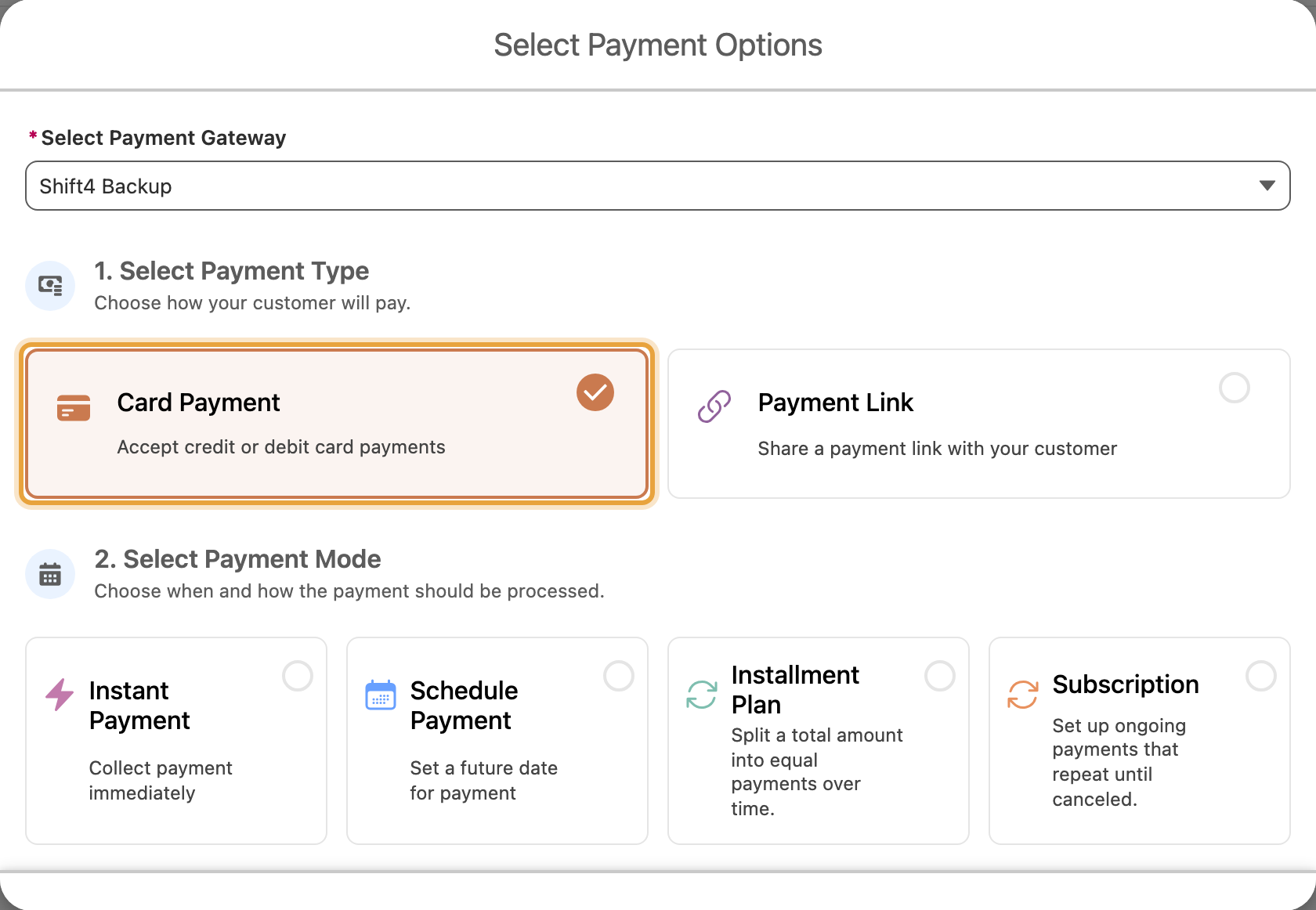
On some gateways, only one option appears here, named after the gateway itself, for example Stripe Link. Choosing it sends a payment link rather than collecting card details in Salesforce; see Send a payment link for what happens next.
-
Choose Instant Payment mode.
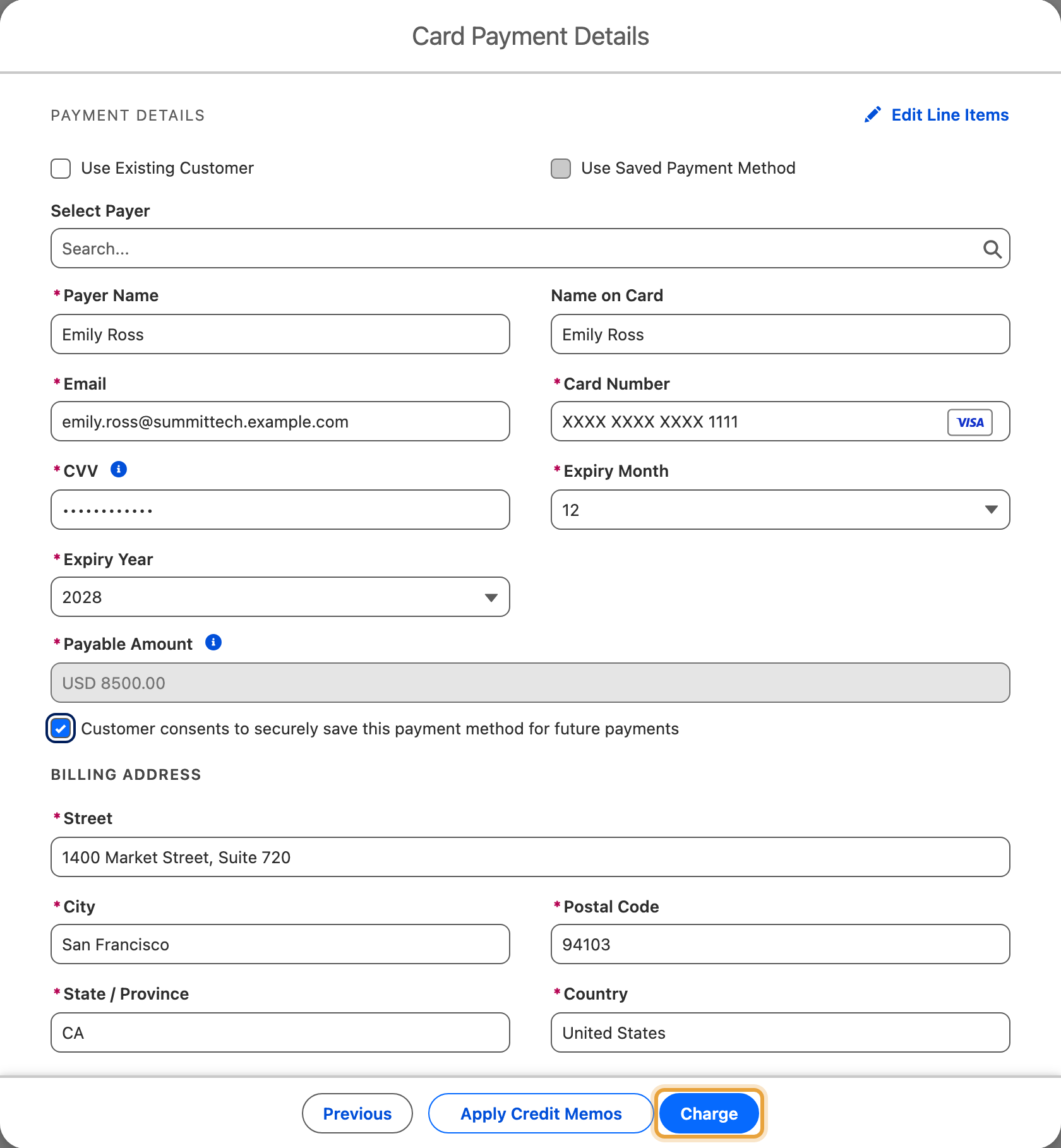
- Enter the payer's details: Payer Name, Email, and address if the form asks for it.
-
Enter the card or bank details. What the payment form looks like depends on the gateway: some show ChargeOn's own card fields, and on others the customer completes payment on the gateway's own secure page.
-
Tick Customer consents to securely save this payment method for future payments if you want to keep the details on file. See Save a payment method.
-
Click Charge (or Send Payment Link, depending on the gateway).
Using the Customer's Credit to Reduce the Charge
If the payer holds credit, an Apply Credit Memos button appears at the bottom of the payment form, beside Charge. Click it before you charge, and you can put some or all of that credit against this payment.
The button opens a screen showing the credit available, with a field beside each credit memo for how much of it to use. Net to Charge at the bottom updates as you type, so you can see what the customer will actually pay. The primary button on this screen submits the payment straight away rather than sending you back to the payment form first, so check the amount before you click it. Its label matches what you are doing: Charge, Schedule Payment, Set Up Installments or Start Subscription. If the credit covers the whole amount, it reads Apply Credit & Mark Paid instead: clicking it takes no money at all, and simply marks the charge paid. Click Previous if you decide not to use the credit. If credit has already been applied, the button reads Edit Credit Memos instead.
Apply a credit memo covers this route in full, and the other one: settling an existing invoice with credit and taking no payment at all.
Prepare the charge for credit
Use Apply Credit Memos when the payer holds open credit and the amount is editable. Finish editing line items first. For a subscription with an upfront amount, apply credit from the invoice using Settle With Credit Memos.
What You Should See
A success message, and a new Transaction History record with status Success, the amount, and the gateway you charged.
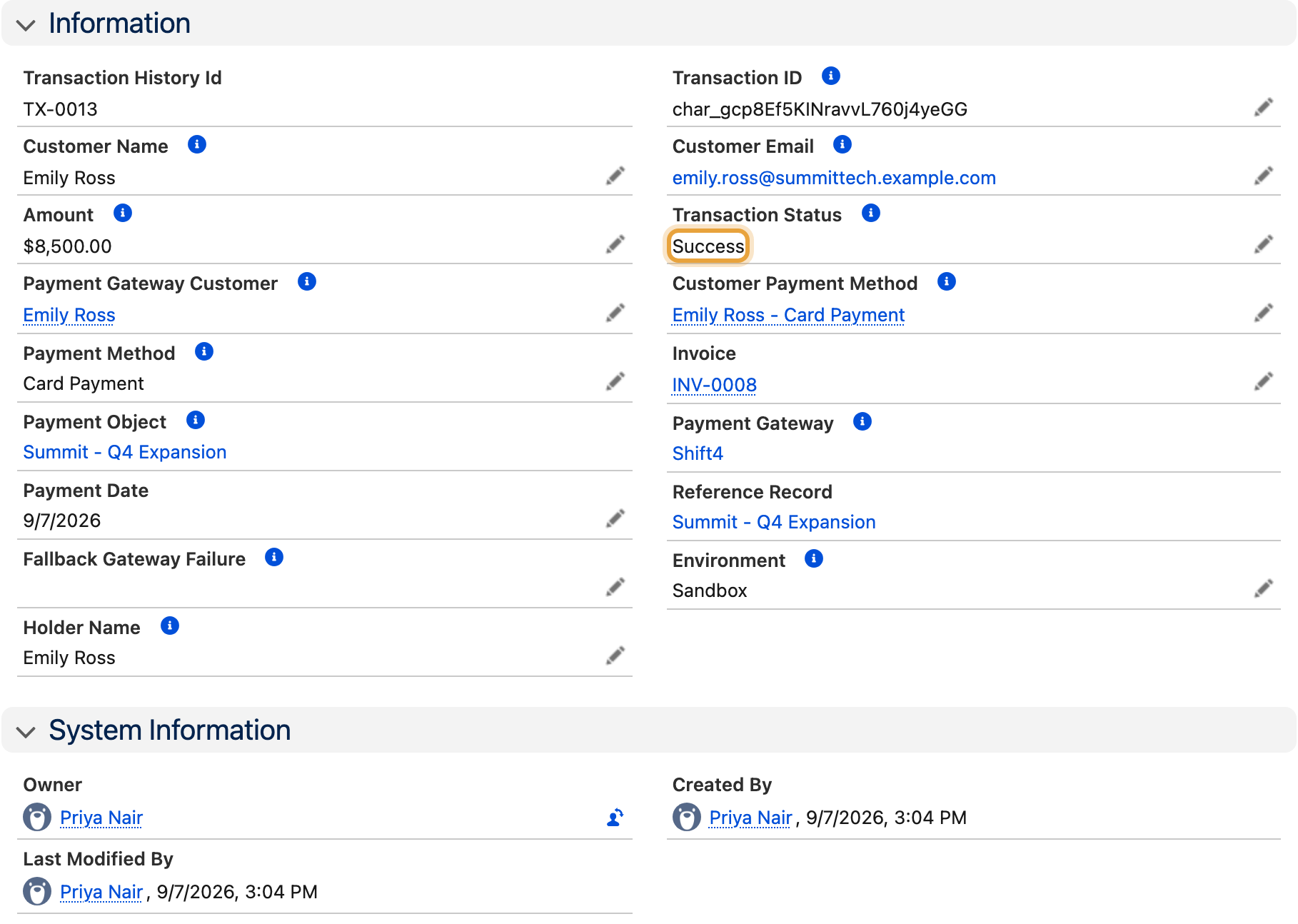
On some gateways, a payment link is generated instead. The Transaction History record starts at status Pending and updates once the customer completes the payment.
If you see 'Payment Requires Attention'
ChargeOn has retained the gateway outcome in an Unresolved Transaction. Do not retry the payment. Check its Gateway Status and resolve the recorded outcome first to avoid charging again. See Resolve unresolved transactions.
If It Does Not Work
| Symptom | Likely cause | What to do |
|---|---|---|
| "No payment gateways support {currency}." | No active gateway is configured for this record's currency | Check gateway configuration, or use a different gateway |
| "Your default payment gateway does not support {currency}." | The auto-selected gateway can't settle in this record's currency | Choose a compatible gateway from the picker |
| "Amount must be greater or equal to {X}." | The amount is below this gateway's minimum charge amount | Increase the amount, or use a different gateway |
| The card is declined | ChargeOn shows the gateway's own decline reason underneath the form | Read the message; try a different card, or a different gateway |
| The customer is asked to complete an extra verification step | The card requires 3D Secure, which is normal for that card | Have the customer complete it; the charge finishes once they do |
| "Payment Requires Attention" / "Unresolved Transaction" | The gateway outcome is retained in an unresolved transaction awaiting review | Do not retry. See the warning above |
| The Charge button doesn't appear | The action hasn't been added to this object's page layout | Part 6 of the quick start guide |
| The Charge button opens but no gateway is selectable | The gateway is inactive, or not mapped to this payment object | Check Active on the gateway record, then the gateway mapping under Global Settings |