
Customise Notification Emails
ChargeOn ships a set of ready-made email templates for payment events. This page is how you change what they say and how they look, and how you point ChargeOn at the right template for each event.
Before You Start
- Know which event you want to change. The table below maps each packaged template to what triggers it.
- Permission to edit email templates in Setup.
The Packaged Templates
| Template | Sends when |
|---|---|
| Success Transaction Receipt | A payment succeeds |
| Authorized Transaction Receipt | A payment is authorised: held, not yet captured |
| Failed Transaction Receipt | A payment attempt fails |
| Refund Transaction Receipt | A refund is processed |
| Payment Link Email Template | A payment link is generated and sent |
| Automated Collection Email Template | An automated collection reminder goes out for a failed installment plan or subscription charge |
| Card Expiration Notification | A customer's saved card is coming up for expiry |
Credit memos use their own, separate template, assigned on the same ChargeOn mapping record as the templates above. See map ChargeOn fields to your objects.
Steps
-
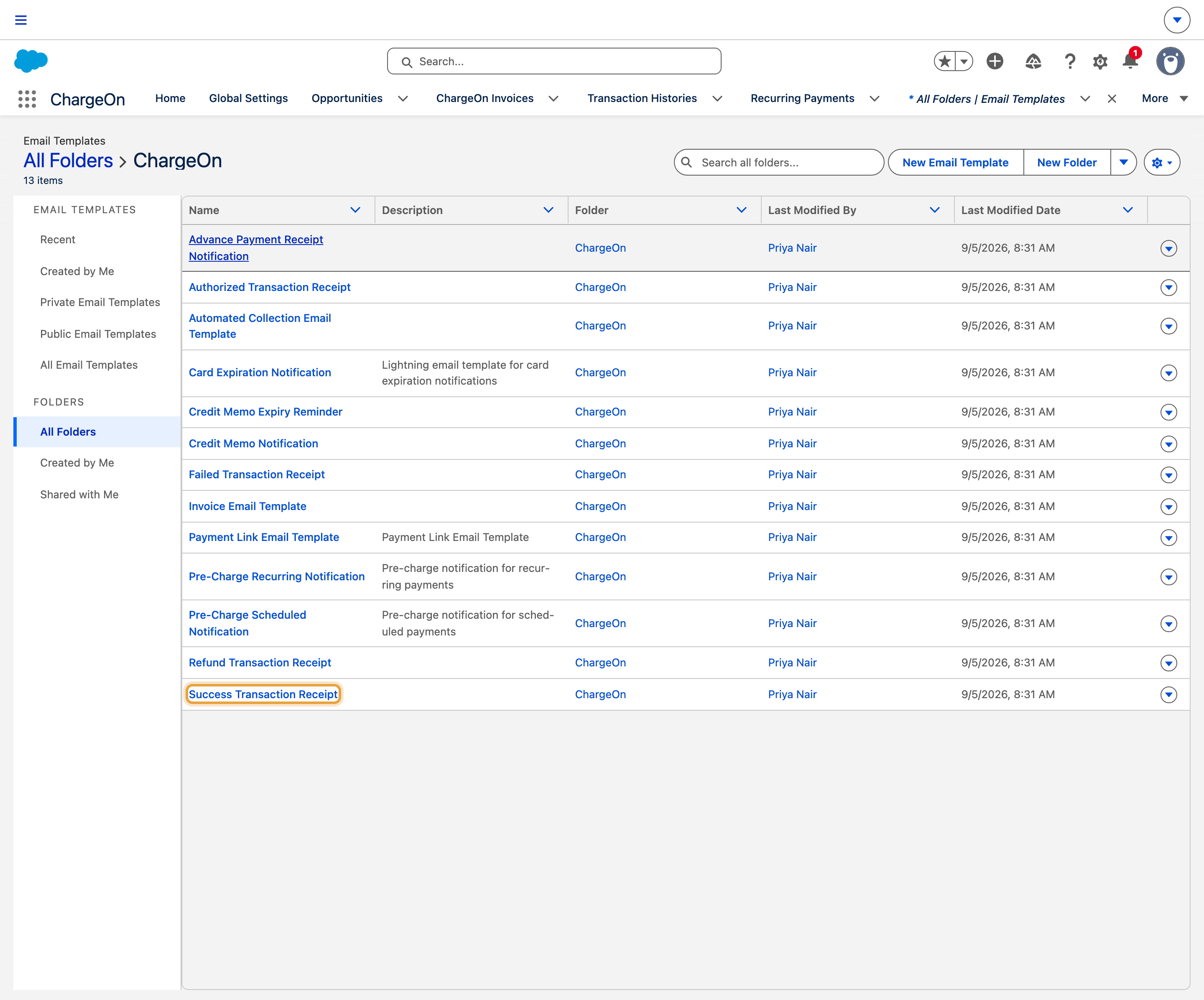
Open Email Templates from the App Launcher, select All Folders, and open ChargeOn.
-
Open the template you want to change.
-
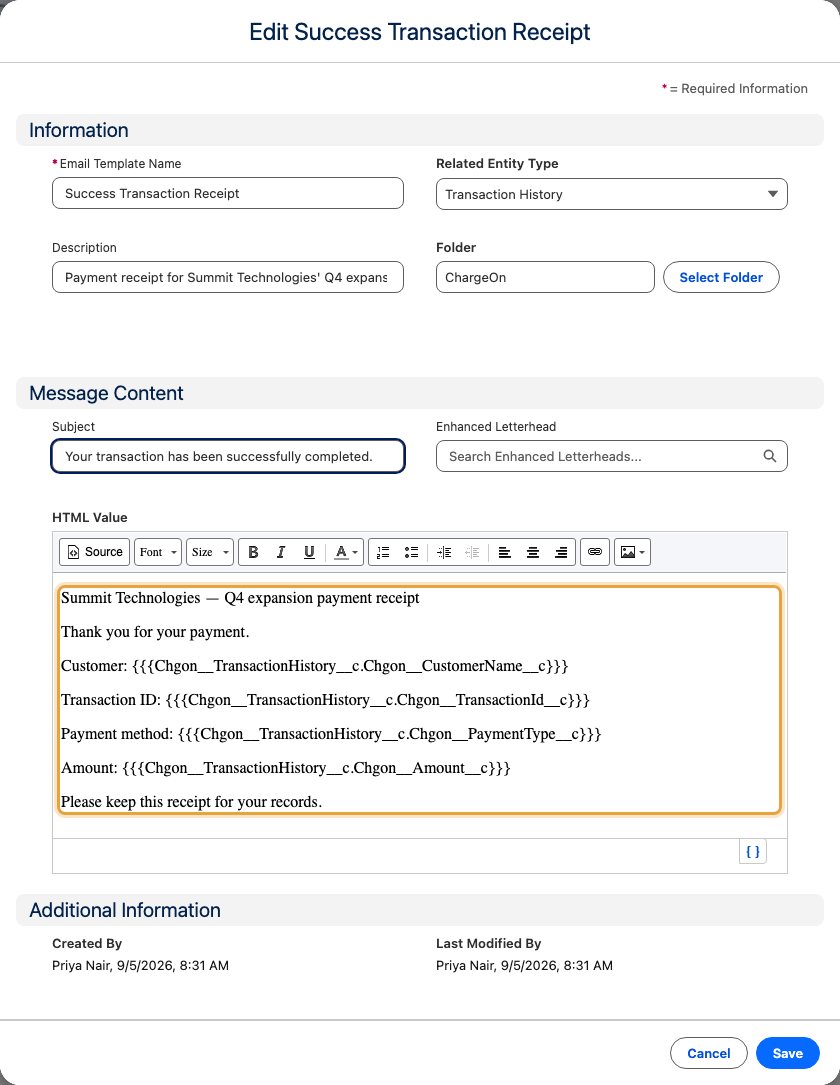
Edit the HTML or text to match your brand: logo, wording, footer. The template's merge fields pull from the record that triggered it (Transaction History or Payment Link), so leave those in place unless you mean to remove the information they show.
-
Save the template.
-
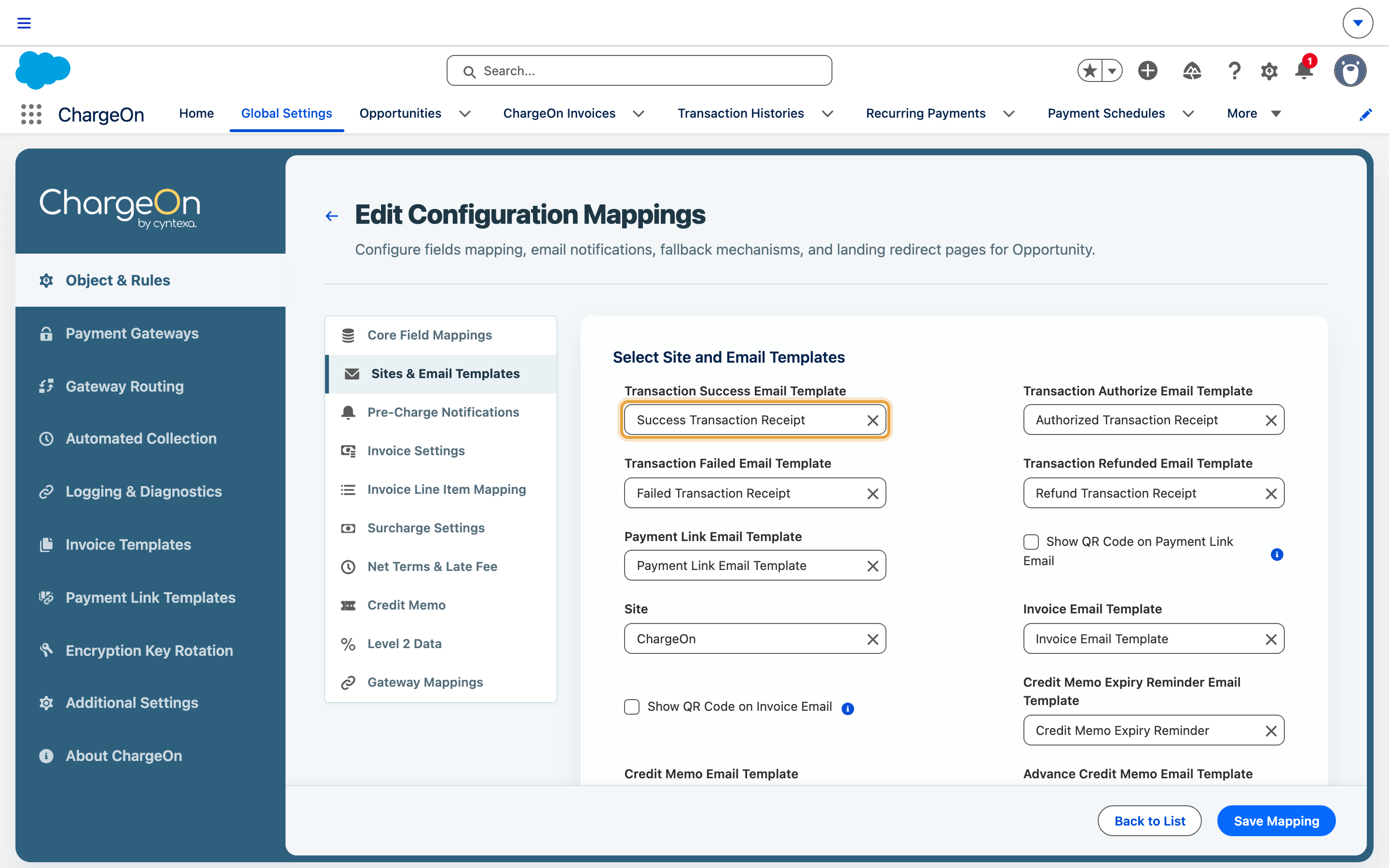
If you want a different template than the one currently assigned for an event, open your ChargeOn mapping record and update the relevant slot under Email Templates. See map ChargeOn fields to your objects.
What You Should See
The next transaction, refund or payment link of that type sends your updated wording.
If It Does Not Work
| Symptom | Likely cause | What to do |
|---|---|---|
| Customers stopped receiving any ChargeOn emails at all | Customer Email Settings in Settings Hub → Additional Settings has a single master switch, and it is off | Turn on Enable Automated Customer Emails to send customer notifications |
| An email is going out with the wrong wording or branding | The wrong template is assigned to that event on the ChargeOn mapping record | Reassign the correct template, step 5 above |
| Merge fields show blank or literal placeholder text | A merge field was edited or removed from the template body | Re-check the field references against a working copy of the original template |