
Collect Automatically with Links
Set up a chase sequence for overdue invoices (reminder emails, fresh payment links, and optional retry charges against a saved payment method), configured once, running on its own from then on.
Before You Start
- You need admin access to Global Settings.
- Decide your escalation ladder before you start: how many reminder stages, how far apart, and which ones (if any) should also attempt a charge.
- If you want different ladders for different customers, decide the tag you will use to match them: this is a plain text value you will also set on those invoices.
Steps
- Go to Global Settings → Automated Collection.
-
Click New.
-
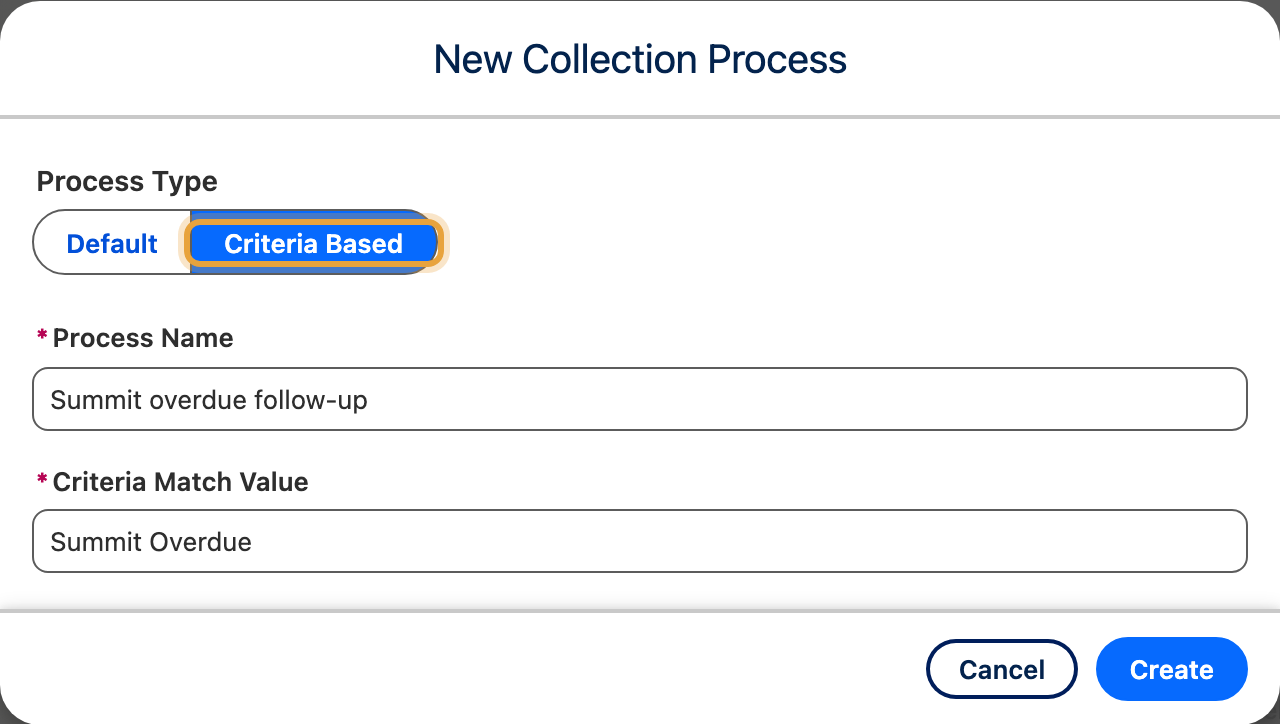
Choose a Process Type: Default applies to every overdue invoice that no other process claims; Criteria Based applies only to invoices tagged with a matching value.
-
Enter a Process Name.
-
If you chose Criteria Based, enter a Criteria Match Value: this must match, exactly, the value you will set in the invoice's own Automated Collection Criteria field.
-
Click Create.
- Set a Default Sender Email, and tick Active.
- Click Add Stage for each step of your chase sequence.
-
For each stage, set:
Field What it does Time Frame Days After or Weeks After the invoice became overdue Interval How many of that unit to wait Retry Payment On, to also attempt a charge against the customer's saved payment method at this stage. Off to only send a reminder and a fresh link Email Template The email sent at this stage Sender Email Overwrite Optional: a different sender for this stage only 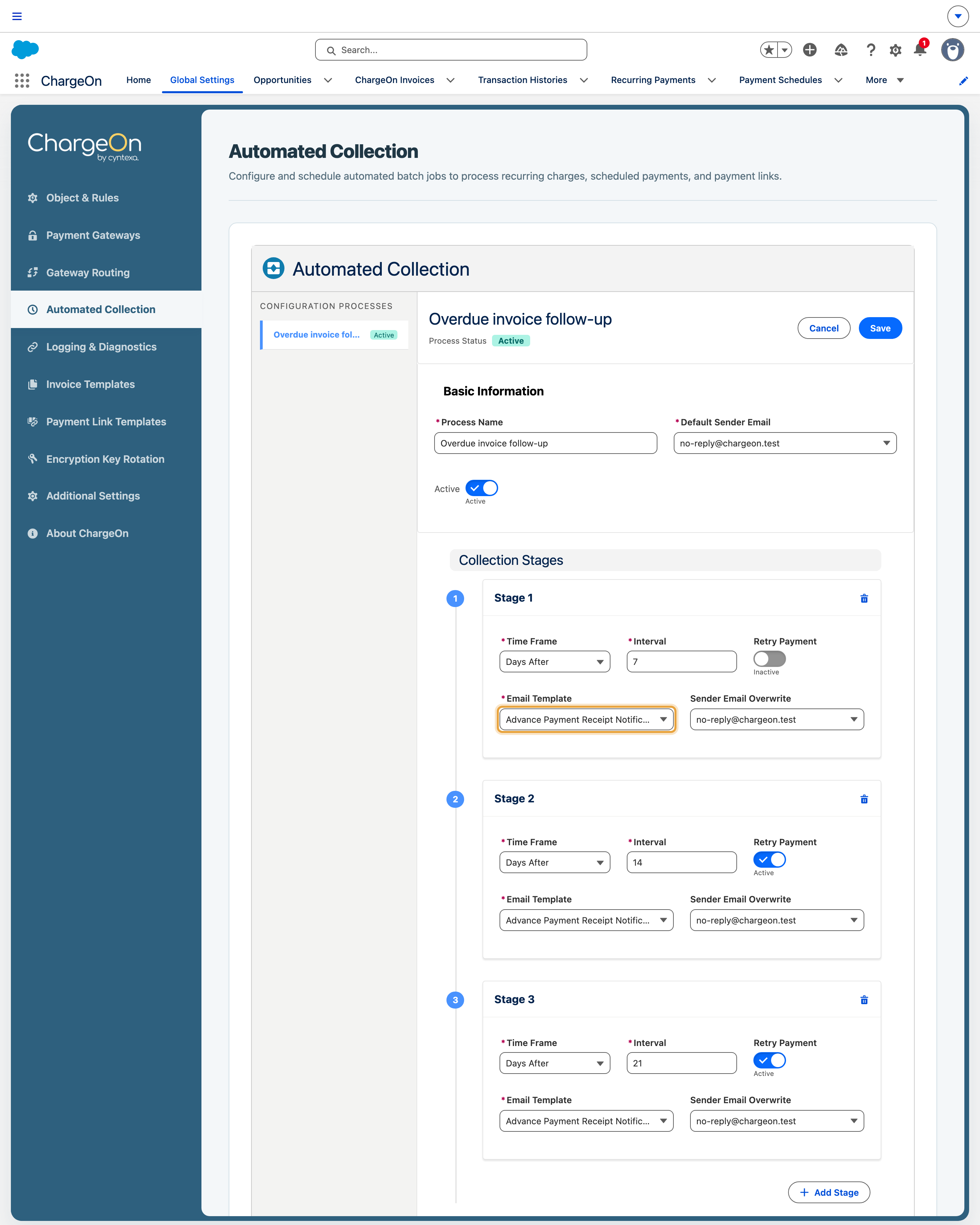
-
Repeat Add Stage for every step in your ladder, in order.
- Click Save.
What You Should See
Your process listed under Global Settings → Automated Collection, with every stage you added shown in order.
Schedule the collection job
Schedule the automated collection job to advance invoices through your reminder stages. See Part 7 of the quick start guide.
An overdue invoice that matches your criteria (or matches nothing, and so falls to your Default process) moves through your stages automatically as each one's wait period is reached, sending its email, retrying a charge if you configured one, and issuing a fresh payment link each time.
If It Does Not Work
| Symptom | Likely cause | What to do |
|---|---|---|
| Nothing happens to any overdue invoice | The background job is not scheduled | Part 7 of the quick start guide |
| An invoice you expected to use a specific process is using Default instead | The invoice's Automated Collection Criteria value does not exactly match your process's Criteria Match Value: this is a plain text match | Check both values for spelling, spacing and case |
| Retry Payment never actually charges anything | Retrying requires an active saved payment method and a gateway configured for retry payments | Save a payment method against the customer, and check the gateway reference |
| An invoice stopped progressing through the stages | Every configured stage has already run with no payment received | Contact the customer to agree how to settle the remaining balance |