
Authorise Now, Capture Later
Reserve a card payment now, without taking the money, then take some or all of it once you know the final amount.
Reserve card funds or take a bank payment
Use an authorisation hold to reserve funds on a card. For bank payments, follow Charge a customer.
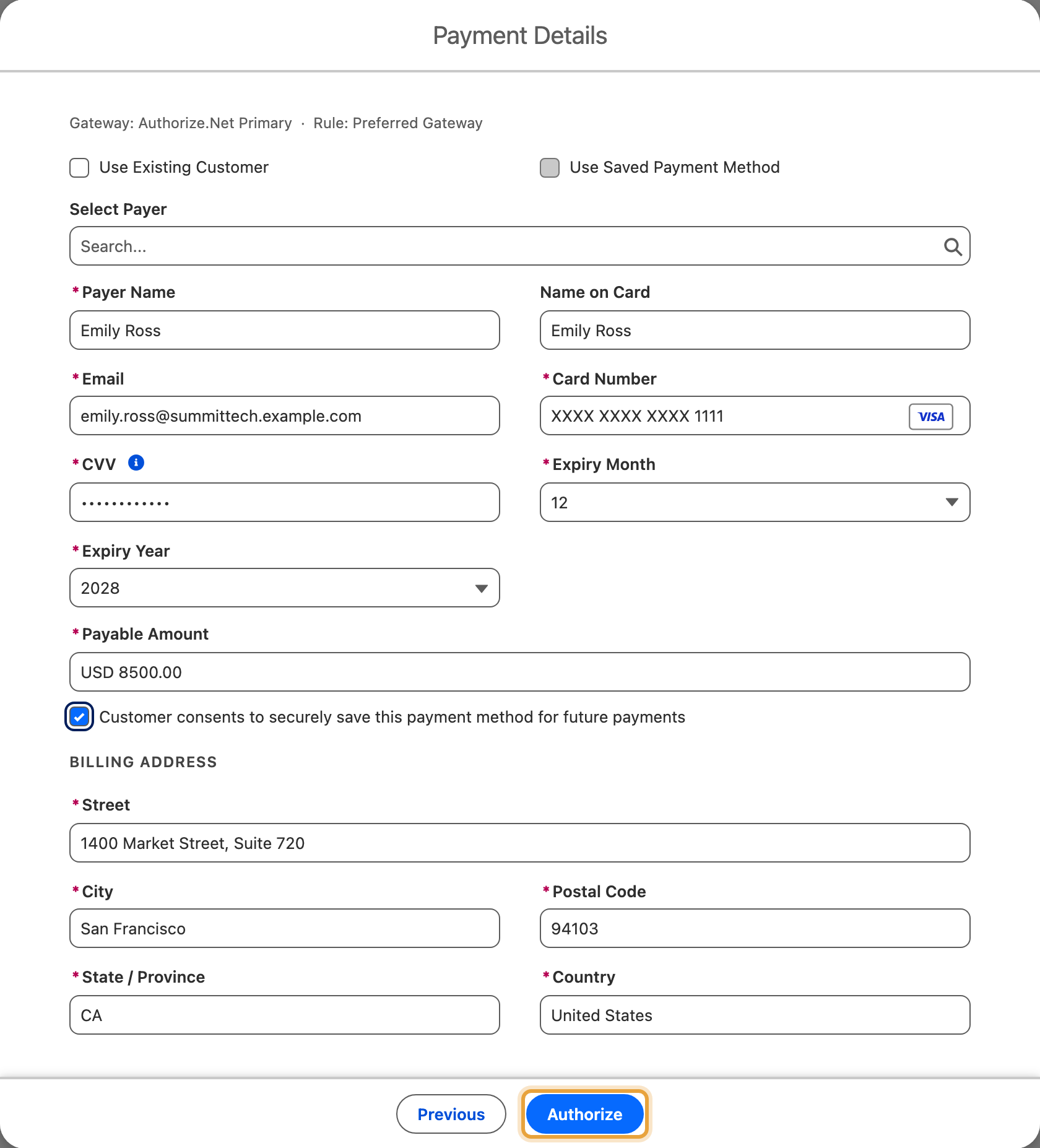
The example reserves $8,500 for Emily Ross at Summit Technologies on Summit - Q4 Expansion, using Authorize.Net Primary. The capture steps use that same authorisation and amount.
Before You Start
- The Authorize Payment action on this object's page layout, added the same way as the Charge action. See Part 6 of the quick start guide and choose the Authorize Payment component instead of Charge.
- You need the ChargeOn permission to authorise payments (part of the ChargeOn Admin or ChargeOn Authorize Operator permission set) to do the authorising, and separately, the permission to capture or void (part of ChargeOn Admin, ChargeOn Operator or ChargeOn Standard User) to finish the job afterwards.
- A gateway that supports authorise and capture. Most gateways do. On Adyen, PayPal and Stripe this needs additional configuration on the gateway record, so check with whoever implemented ChargeOn for you: see the gateway reference.
Authorise the Payment
- Open the record.
- Click Authorize Payment.
- If more than one gateway is available, select it from Select Payment Gateway.
-
Enter the payer's details and card information.
-
Click Authorize.
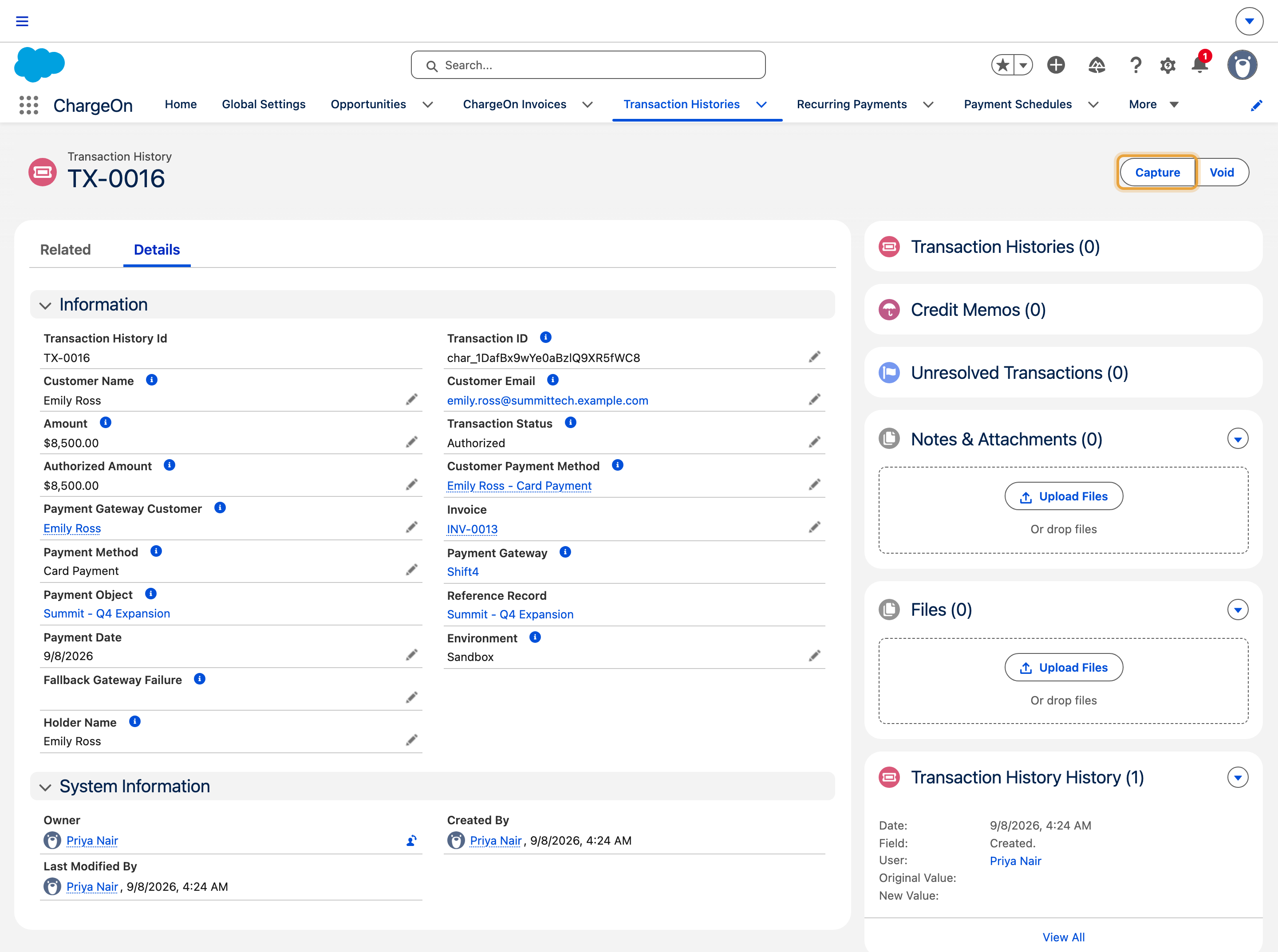
What you should see: a new Transaction History record with status Authorized, showing the amount reserved. No money has moved yet. The card issuer has set it aside.
Capture the Payment
-
Open the Transaction History record you authorised: its status must be Authorized.
-
Click Capture.
- Review the amount to capture. To take less than the full amount, edit the line items shown.
-
Click Next.
-
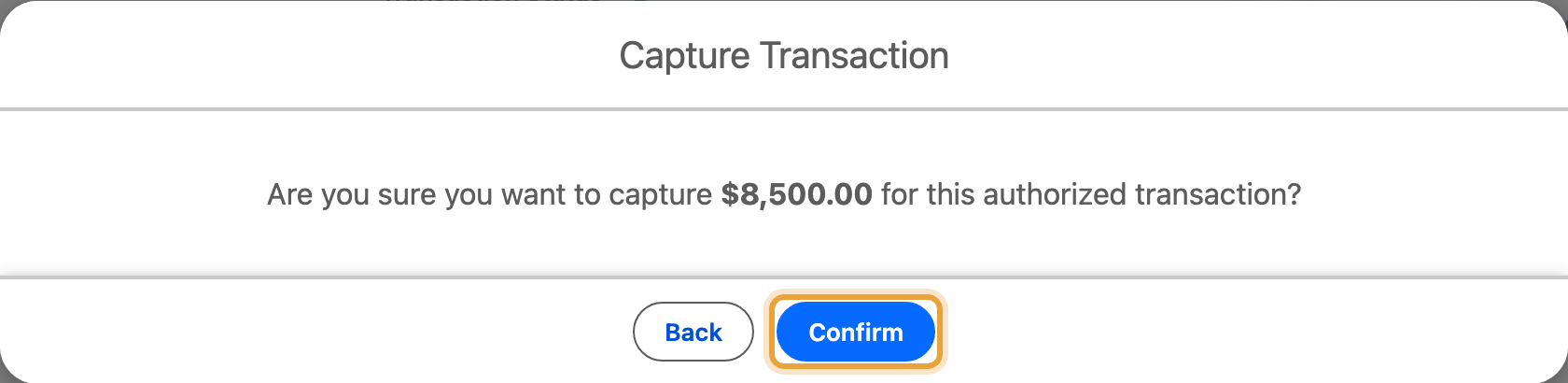
Click Confirm.
Choose the capture amount for your gateway
On Linked2Pay, Elavon and NMI, capture the full authorised amount or void the hold. For partial capture, choose a gateway marked Yes in the gateway reference.
What you should see: the same Transaction History record moves to status Success, showing the amount actually captured.
If You Decide Not to Fulfil
Release the hold instead of capturing it. See Void a transaction.
If It Does Not Work
| Symptom | Likely cause | What to do |
|---|---|---|
| Authorize Payment doesn't appear on the record | The action hasn't been added to this object's page layout | See Before you start |
| No gateway is selectable on Authorize Payment | Every configured gateway either doesn't support Card, or needs additional configuration on the gateway record for authorise and capture | Check with whoever implemented ChargeOn for you. See the gateway reference |
| "Partial capture is not supported for {gateway}." | This gateway requires full capture | Capture the full authorised amount, or void it instead |
| "Capture amount cannot be greater than authorized base amount." | You tried to capture more than was held | Reduce the amount or the line items |
| "Environment mismatch between Transaction History and Payment Gateway." | The gateway's Environment (Live/Sandbox) changed since this authorisation was created | Check the gateway record's Environment setting with your administrator |
| Capture fails with the gateway's own "expired" error | The card issuer only holds an authorisation for a limited time, and this one has passed it | Void the transaction and take a fresh payment |
| "You do not have permission to capture authorized payments." | Missing the Capture permission | Assign a permission set that includes it |
| "An Unresolved Transaction is already linked to this record." | A previous action on this transaction didn't finish cleanly | Resolve it first |