
Create an Invoice
ChargeOn creates an invoice automatically, every time you take a payment against a mapped record. Choose whether to generate it alongside a payment you take now, or first, for the customer to pay later.
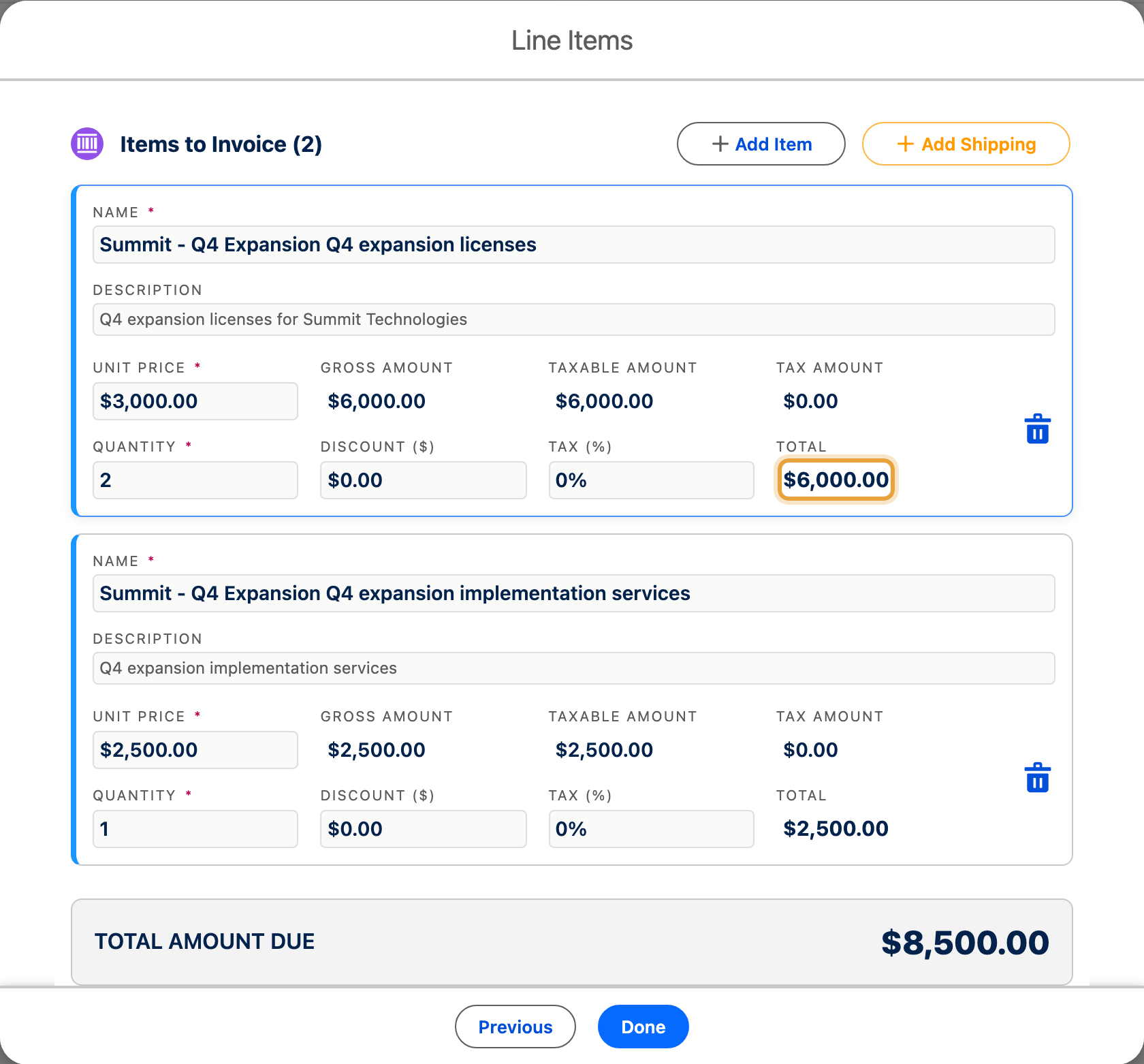
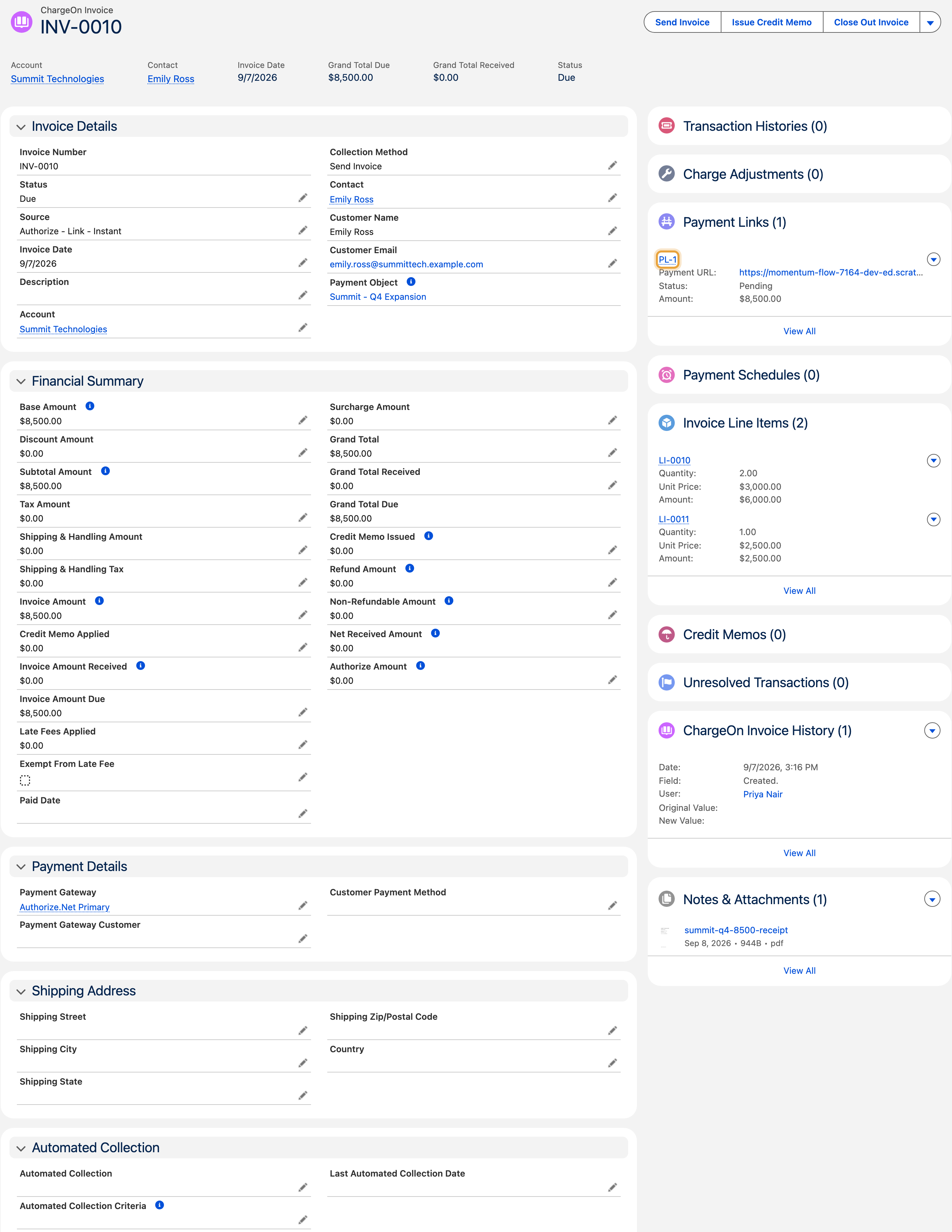
The example bills Emily Ross at Summit Technologies for Summit - Q4 Expansion: $6,000 in Q4 expansion licenses plus $2,500 in implementation services, totalling $8,500. The invoice and its payment link carry the same total.
Before You Start
- The record you are charging against must be mapped to ChargeOn, with invoicing available. See the quick start guide, Part 5.
- If you want line items broken down by product or service, your admin needs to have mapped the invoice line item fields for this object. See line items, tax and discount.
Steps
- Open the record you are billing and click Charge.
-
Add or review the line items for this invoice.
-
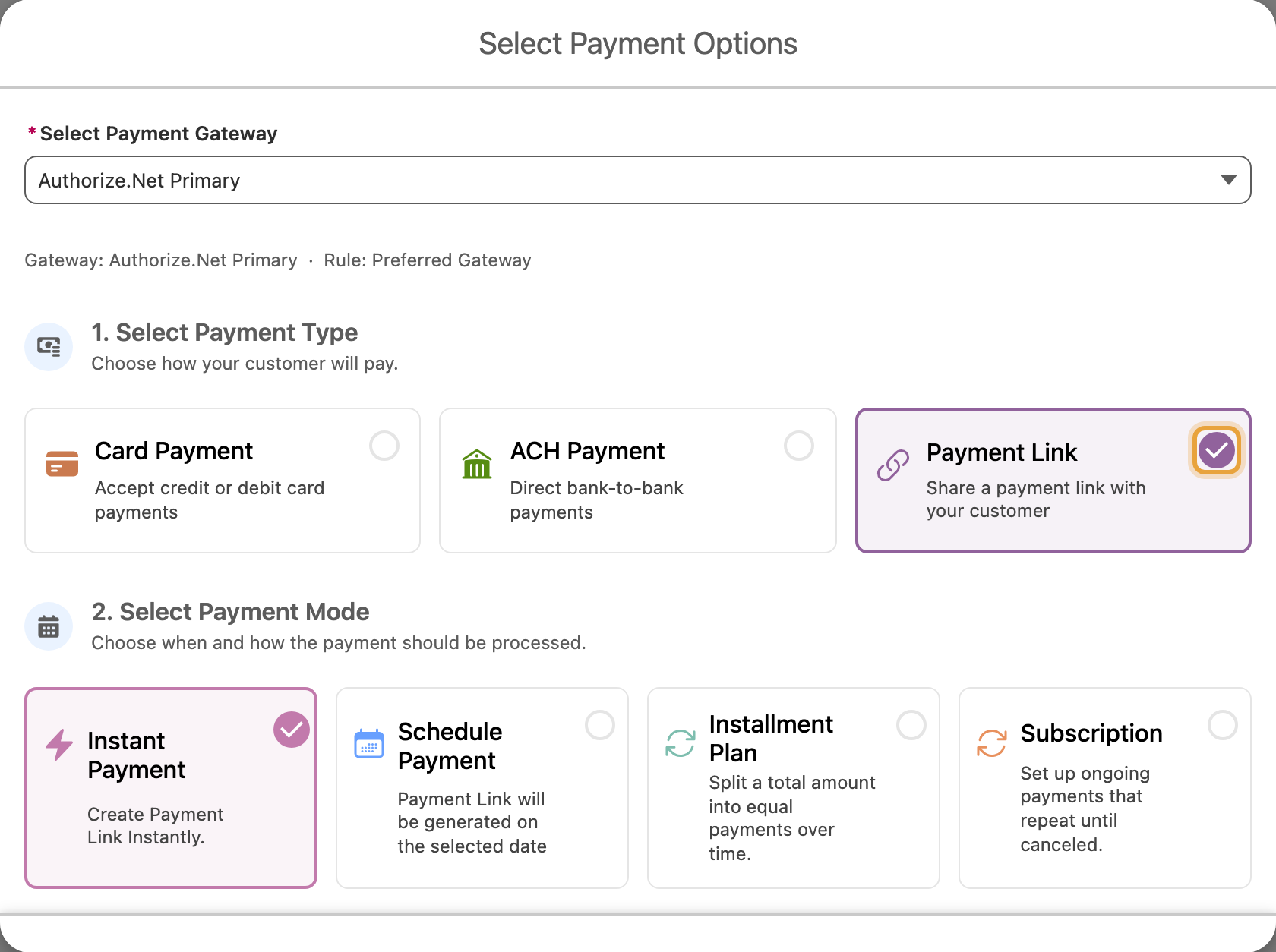
Choose how the customer pays:
- To collect payment now, choose Card or Bank and complete the charge as usual: the invoice is created in the same action. It shows Paid once the gateway settles, and Processing while the gateway is still working on it.
- To bill first and collect later, choose Payment Link: ChargeOn creates the invoice as Due and generates a payment link for the customer, with no charge taken yet.
-
Click the button for the way you chose: Charge to collect now, or Send Payment Link to bill first.
What You Should See
The invoice record, showing your line items and the total. If you collected payment now it shows Paid, or Processing for the moment while the gateway settles; if you billed first it shows Due with a payment link attached.
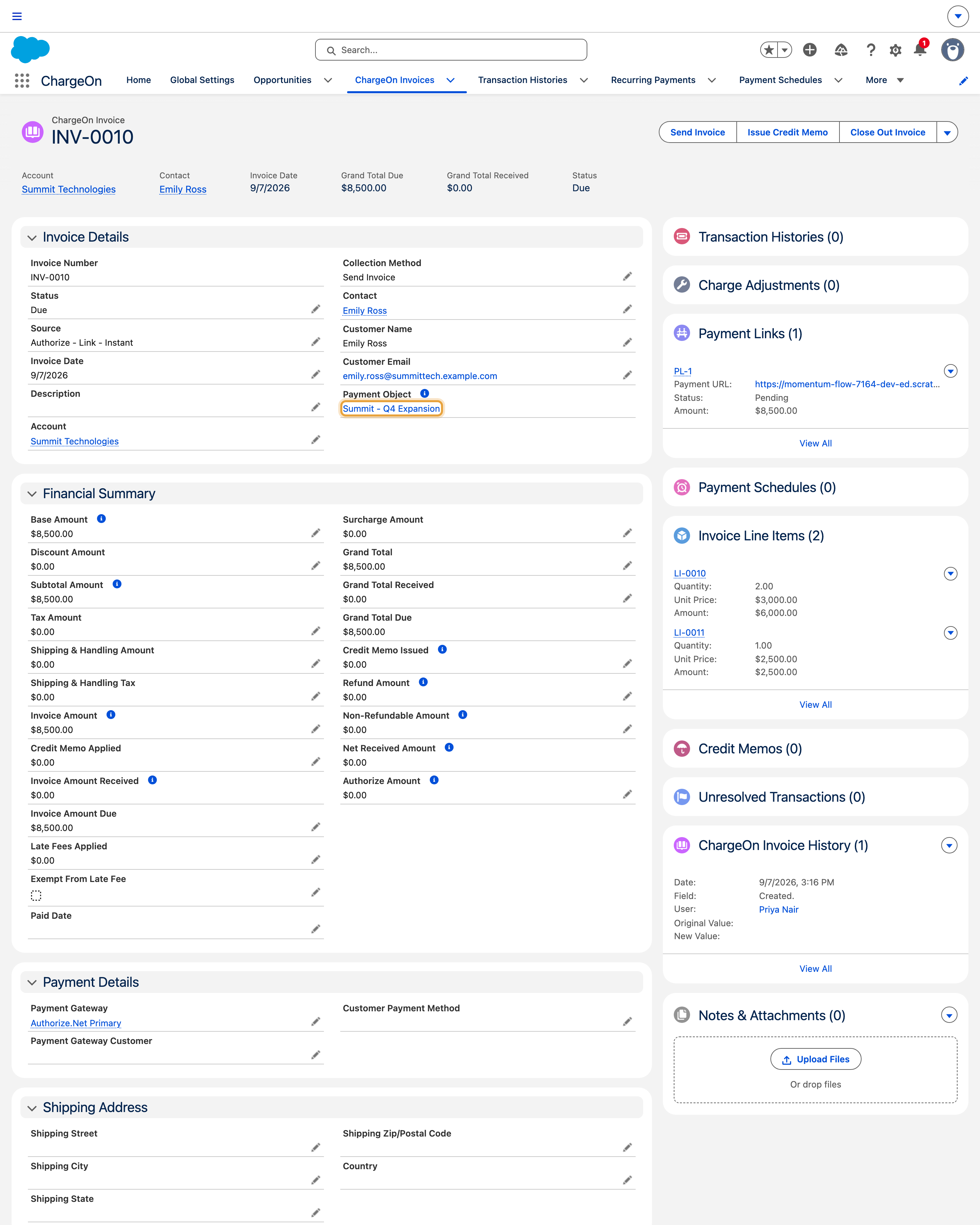
The Payment Object link opens the record you billed. Here, it points back to Summit - Q4 Expansion, so you can return to the Opportunity from the invoice.
If It Does Not Work
| Symptom | Likely cause | What to do |
|---|---|---|
| No invoice was created after a charge | Invoicing is not mapped for this record's payment object | Check the mapping under Global Settings → Object and Rules |
| Line items do not appear | The line item fields are not mapped for this object | Ask your admin to map them. See line items, tax and discount |
| The invoice shows the wrong customer, or none | The record you charged has no resolvable Account or Contact | Set the Account or Contact on the record and check its payer mapping before charging |