
Route Payments Between Gateways
This page covers two features that get confused with each other constantly, because they both involve "picking a different gateway", but they solve different problems and are configured in different places.
Routing decides ahead of time. Fallback reacts to a failure.
Gateway routing picks which gateway to try before a charge is attempted, using rules you write: by amount, currency, country or payment mode. Gateway fallback does not pick ahead of time. It reacts: if the gateway a charge was already sent to declines it, ChargeOn automatically retries the identical charge on a backup gateway. You can use both together: routing decides the first gateway tried, and fallback takes over only if that attempt fails. Use fallback for card payments. See gateway fallback below for eligible gateways and setup.
Gateway Routing
Criteria-based routing picks the payment gateway for a transaction automatically, using rules you define. Instead of always using the same preferred gateway, ChargeOn evaluates your rules when the charge form opens and selects the best gateway for that transaction: by amount, currency, country or payment mode.
Routing is off by default. With it off, ChargeOn behaves as it always has and uses the preferred gateway. With it on, rules are evaluated in priority order and the first match wins. If nothing matches, the preferred gateway is used.
Before You Start
- At least two connected and verified gateways. Routing between one gateway and itself achieves nothing
- Each target gateway must be active and linked to the ChargeOn record
- Permission to edit the ChargeOn record
Turn Routing On
- Open a ChargeOn record.
-
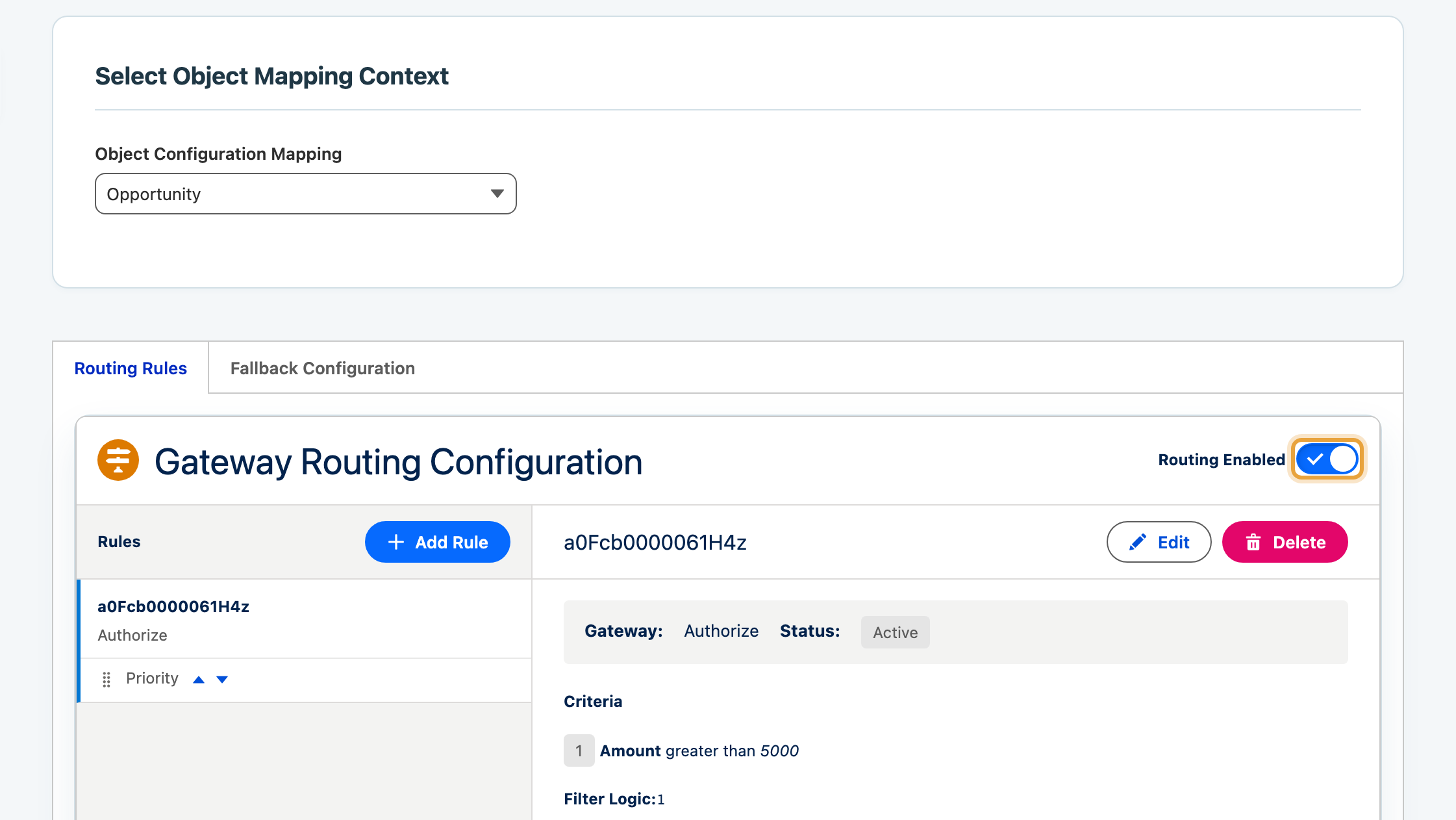
Click the Configure Routing quick action. A full-screen panel opens: the rules list on the left, the detail and edit panel on the right.
-
Switch the toggle at the top of the screen on.
| Toggle | What happens at charge time |
|---|---|
| Off (default) | The preferred gateway is selected, as before |
| On | Rules are evaluated in order; the first match selects its gateway |
The toggle takes effect immediately and persists across sessions.
Create a Rule
- Click Add Rule at the top right of the left panel. The right panel switches to edit mode.
-
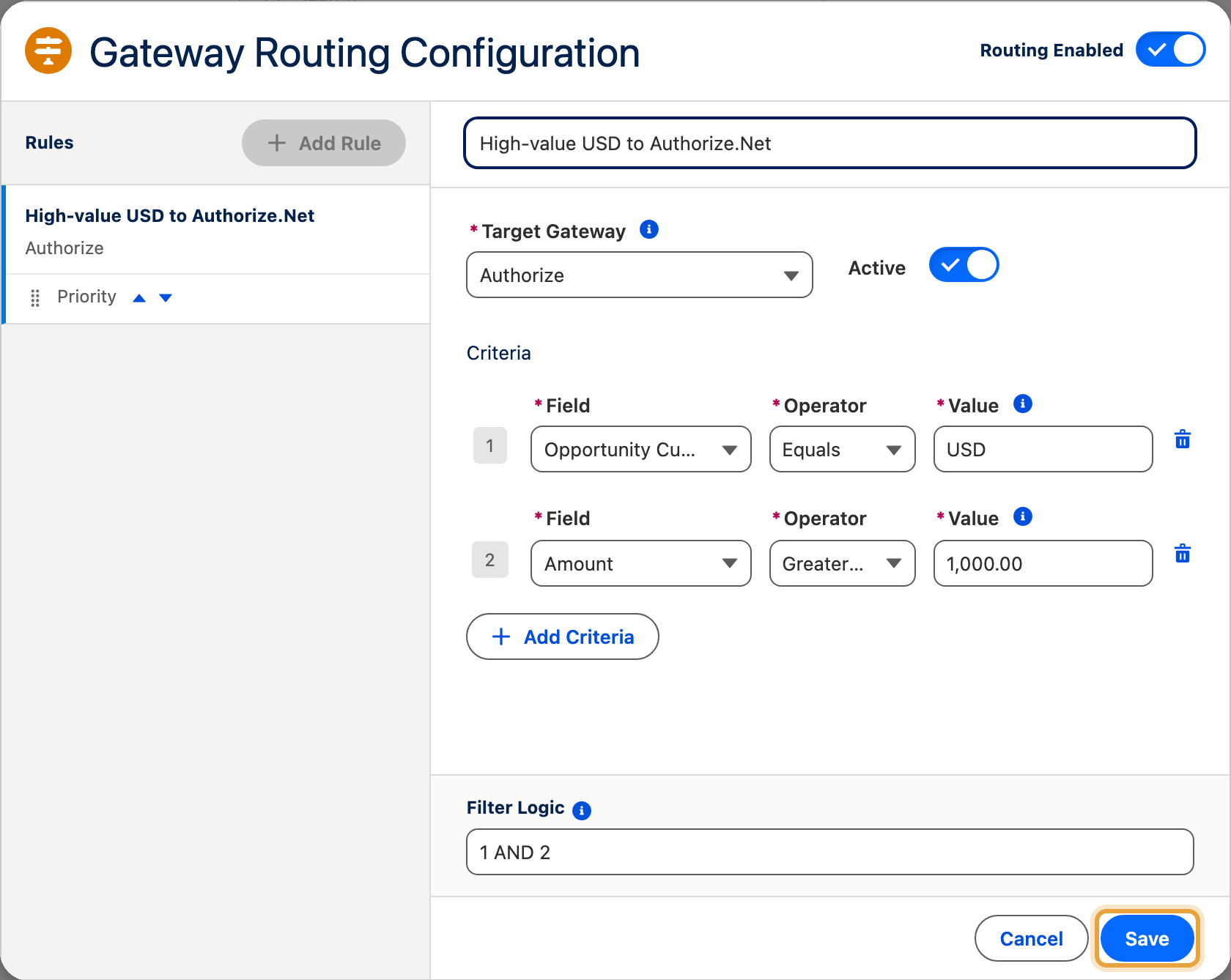
Fill in the rule:
- Rule Name: the editable heading at the top of the right panel. Required. Make it describe the intent, for example "High-value USD to Authorize.Net"
- Target Gateway: the gateway to use when this rule matches
- Active: leave on. Turning it off disables the rule without deleting it
-
Click Add Criteria, then fill each row: Field, Operator, Value.
-
Click Save at the bottom of the right panel.
New rules are added at the end of the priority order. You can reorder them afterwards.
Fields You Can Match On
| Field | What it is | Type | Examples |
|---|---|---|---|
| Amount | The transaction amount | Number | 100, 500.50, 1000 |
| Currency Code | ISO currency code | Text | USD, EUR, GBP, INR |
| Country | Billing country code | Text | US, CA, GB, DE |
| Payment Mode | How the payment is being taken | Text | INSTANT, SCHEDULED |
| Payment Type | The payment method type | Text | CARD, BANK, ACH, LINK |
Choose criteria available when the form opens
Use Amount, Currency Code, Country or Payment Mode for automatic gateway selection on the Charge form. Routing evaluates these values when the form opens, before the payment type is selected.
Operators
| Operator | What it does | Works with | Example |
|---|---|---|---|
| Equals | Exact match, case-insensitive | Text, Number | Currency Code Equals USD |
| Not Equals | Does not match | Text, Number | Country Not Equals US |
| Greater Than | Numeric greater than | Number only | Amount Greater Than 1000 |
| Less Than | Numeric less than | Number only | Amount Less Than 50 |
| Greater Than or Equal | Numeric at least | Number only | Amount Greater Than or Equal 500 |
| Less Than or Equal | Numeric at most | Number only | Amount Less Than or Equal 100 |
| In | Value appears in a comma-separated list | Text | Currency Code In USD,EUR,GBP |
| Not In | Value does not appear in the list | Text | Country Not In CN,RU |
Criteria Combine with and Unless You Say Otherwise
Every criterion in a rule must match for the rule to fire. A rule with Currency Code Equals USD
and Amount Greater Than 1000 matches only transactions that are both in USD and over
$1,000.
To combine criteria any other way, use Filter Logic: refer to criteria by number and
join them with AND, OR and parentheses, for example 1 AND (2 OR 3). Leave it blank and
every criterion must match.
How Rules Are Evaluated
- Rules run from the top of the list downwards.
- The first rule that matches selects the gateway. Evaluation stops there.
- If no rule matches, the preferred gateway is used.
- Inactive rules are skipped.
- Set priority by arranging the rules in the list.
Order matters more than people expect. A broad rule near the top will shadow every specific rule below it.
Manage Existing Rules
Edit a Rule
- Click the rule in the left panel to select it.
- Click Edit at the top right of the detail panel.
- Change the name, gateway, active flag or criteria.
- Click Save, or Cancel to discard.
An Unsaved badge appears in the header while you have pending changes.
Reorder Rules
Each rule card in the left panel has up and down arrows next to Priority. Clicking one swaps the rule with its neighbour. The list updates immediately.
Deactivate a Rule
Turn the Active toggle off inside the edit form. Inactive rules are skipped at charge time and appear in grey in the left panel. Open the rule’s detail view to check its status.
Deactivating is the safe way to test whether a rule is causing a problem. It is reversible; deleting is not.
Delete a Rule
Deleting is permanent
The rule and all its criteria are removed and cannot be recovered. Deactivate instead unless you are certain.
- Select the rule in the left panel.
- Click Delete in the detail panel header.
- Confirm in the dialog.
Examples
Send high-value US dollar transactions to Authorize.Net
| Setting | Value |
|---|---|
| Rule Name | High-value USD to Authorize.Net |
| Target Gateway | Authorize.Net |
| Criterion 1 | Currency Code Equals USD |
| Criterion 2 | Amount Greater Than 1000 |
Send Australian transactions to FatZebra
| Setting | Value |
|---|---|
| Rule Name | AUD to FatZebra |
| Target Gateway | FatZebra |
| Criterion 1 | Currency Code Equals AUD |
Send Indian transactions to Razorpay
| Setting | Value |
|---|---|
| Rule Name | INR to Razorpay |
| Target Gateway | Razorpay |
| Criterion 1 | Currency Code Equals INR |
How Routing Applies
| Routing behaviour | What it means for you |
|---|---|
| Choose criteria for automatic selection | Use Amount, Currency Code, Country or Payment Mode, which are available when the form opens |
| Match by Country | Populate the billing address’s country before using a country rule |
| The user can override | The selected gateway is a recommendation, not a lock. Users can change it in the dropdown |
| Choose a gateway for each payment flow | Routing selects a gateway on the Charge form. Scheduled payments, installment plan charges, subscription charges and batch payments use their configured gateway |
To use a specific gateway for an installment plan or subscription, set it on the Recurring Payment record.
If Routing Does Not Work
| Problem | What to check |
|---|---|
| A rule is not matching | Check every criterion value matches exactly. Text comparison ignores case, but USD with a trailing space will not match USD. Confirm the rule is active, and that no broader rule sits above it in the list |
| The gateway is missing from the dropdown | The target gateway must be active and linked to the ChargeOn record via a ChargeOn Gateway Link |
| The routing toggle turns itself off after saving | Your permission set may not grant edit access on the routing field. Ask your administrator |
| The charge form still shows the gateway selection screen | Routing is enabled per ChargeOn record. Confirm you enabled it on the record the charge form is using |
| "No payment gateways support..." | Configure a linked gateway for the record’s currency, using multicurrency setup |
| "Rule name required" when saving | Enter a name in the editable heading at the top of the edit panel |
Gateway Fallback
Fallback is ChargeOn's automatic resilience feature: if the gateway a charge was sent to declines it, ChargeOn retries the same charge on a backup gateway, without the customer having to do anything or re-enter their card. It is configured on your ChargeOn mapping record, not the routing panel above. See map ChargeOn fields to your objects.
Before You Start
- At least two eligible gateways. Ask your implementation team to confirm the primary and backup gateways are configured for card payment fallback.
- Permission to edit the ChargeOn record.
Turn Fallback On
- Open your ChargeOn record.
-
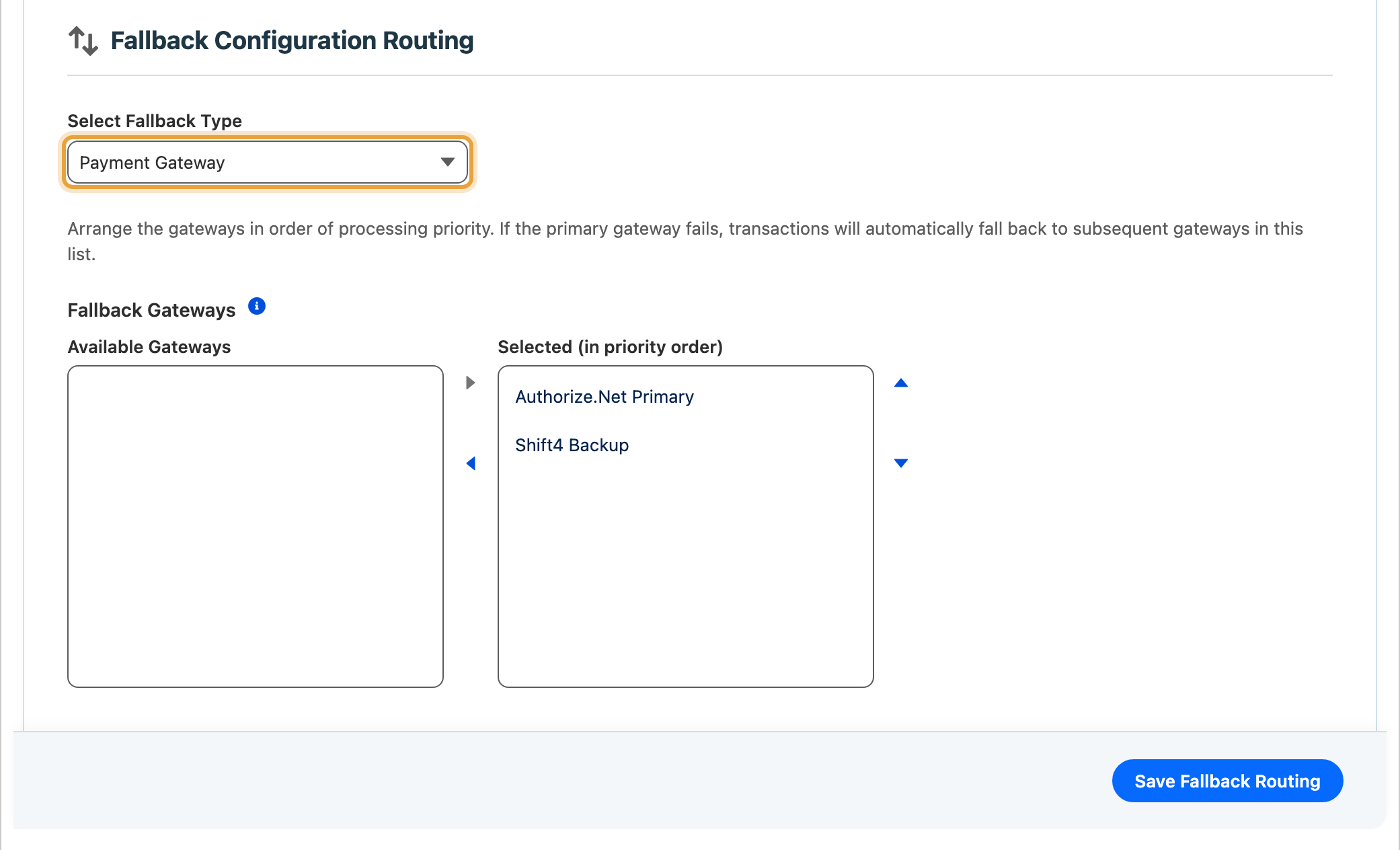
Set Select Fallback Type to Payment Gateway. The Fallback Gateways list only appears once this is set.
-
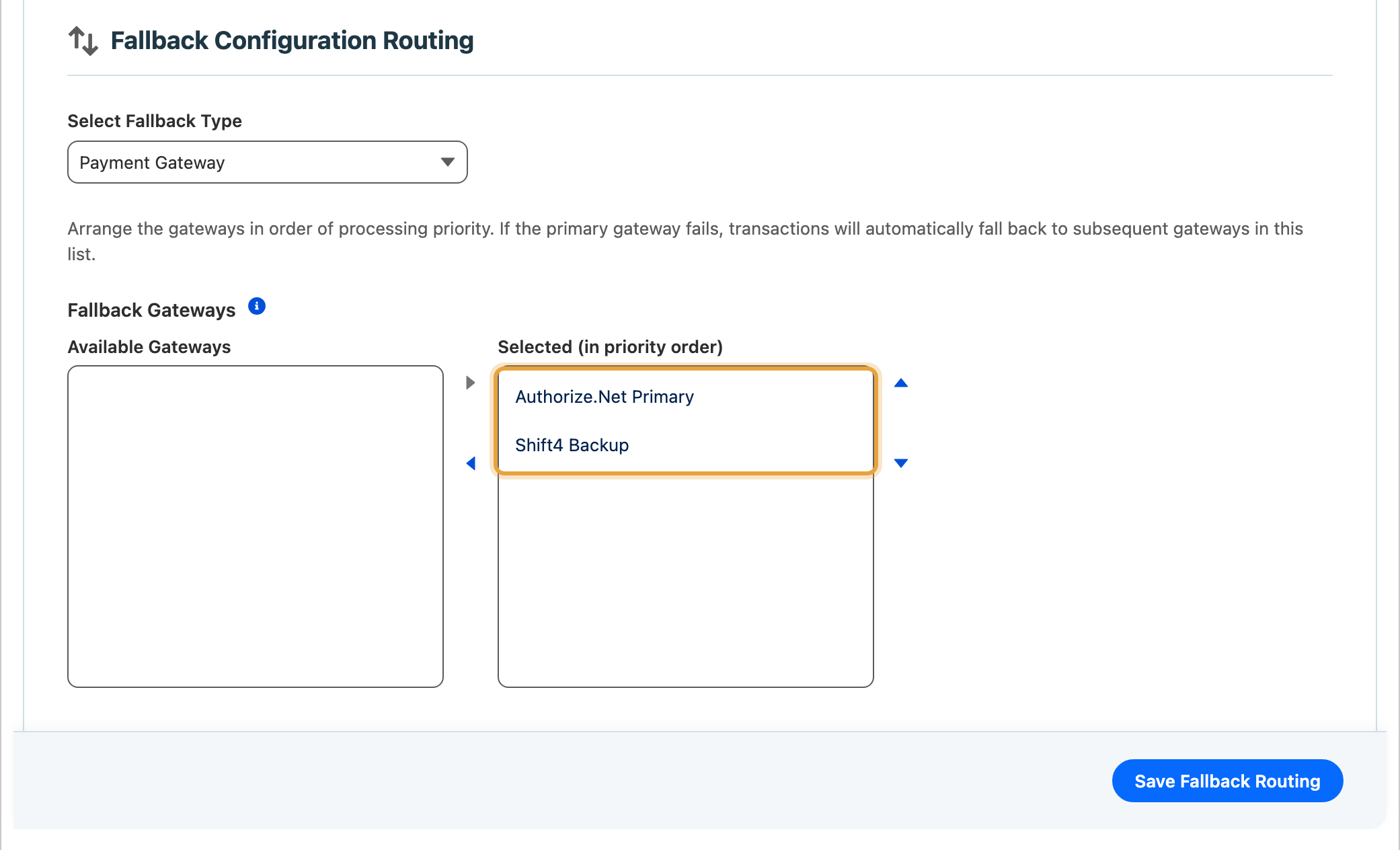
Under Fallback Gateways, move up to three gateways from Available to Selected.
-
Use the up and down arrows to arrange them in the order you want them tried. First in the list is tried first.
-
Click Save.
How It Works at Runtime
- A customer submits a payment → the primary gateway attempts the charge.
- If the primary fails → ChargeOn retries on Fallback Gateway 1.
- If that fails → retries on Fallback Gateway 2, then Fallback Gateway 3.
- If every gateway fails → the payment fails, with a combined error message.
Before the primary charge is even attempted, ChargeOn tokenises the card on every fallback gateway at the same time. This means a fallback retry never needs the customer to re-enter their card details.
Configure the primary and backup gateways for card payments
Use the gateway reference to choose eligible gateways. Ask your implementation team to complete any additional setup for both the primary and backup gateways before using fallback.
Your installment plan or subscription uses the gateway where its first charge succeeds for the rest of its life. If that charge succeeds on a backup gateway, each later charge uses that gateway.
For exactly which gateways can take part in fallback and under what condition, see the gateway reference.
If Fallback Does Not Work
| Symptom | Likely cause | What to do |
|---|---|---|
| A gateway in your Fallback Gateways list is never actually tried | It is not currently able to act as a fallback target | Check with whoever implemented ChargeOn for you, or choose a different backup gateway |
| Fallback did not retry after a decline | Only card payments fall back, bank payments and Payment Link do not. Or the backup gateway is not currently set up to act as a fallback target | Confirm the failed payment was a card charge, and check with whoever implemented ChargeOn that the backup gateway is set up to act as a backup |
| An installment plan or subscription stayed on a backup gateway after its first cycle fell back to it | Expected. A plan's gateway is fixed from its first successful charge onward | Continue using the gateway shown on the plan; review its first successful transaction to confirm the selection |